View and copy codes
Open the extension, find the account, and click its code to copy it.
 Authenticator Cloud
Scan setup QR codes and fill verification codes with the browser extension. With Pro, sync your accounts with the iPhone app.
About cloud sync
Sign in to the same account in the app and extension, then enable Pro cloud sync. You do not need to scan each setup QR code again on every device.

Free accounts stay on your device and support backup export. Cloud sync requires sign-in and Pro. Accounts that have not synced cannot be restored from the cloud. App backups use a passphrase; extension JSON exports contain unencrypted secrets and need separate protection. The formats are not interchangeable.
Open the extension, find the account, and click its code to copy it.
Scan the QR code in a website’s two-factor authentication settings. No screenshot or phone camera is needed.
On supported sign-in pages, use the extension’s fill button to enter the code.
Import and export backups for free. Restore synced accounts with Pro.
Check codes on your phone when you are out, or use the browser while working at your computer.
Works with services that support standard TOTP, including Google, Microsoft, GitHub, AWS, Cloudflare, Aliyun, Binance, and more.
 Google
 Microsoft
 GitHub
 AWS
AWS
 阿里云
阿里云
 Binance
 Cloudflare
 Steam
Steam
 Epic Games
 PlayStation
 MetaMask
 Razer Gold
Install the extension and add your first authenticator account.
Install Authenticator Cloud from your browser’s extension store.
Available for Chrome, Edge and Firefox. Safari is coming soon.
Click the add button on the store page to install the extension.
Use the extension to scan the setup QR code in the website’s two-factor authentication settings.
Click the code to copy it, or use the fill button on supported sign-in pages.
Two-factor authentication asks for another form of proof alongside your password, such as a code generated by an authenticator app. It is a type of multi-factor authentication (MFA).
This reduces the risk of someone accessing your account with a leaked password alone.
During setup, the website provides a secret key, usually also as a QR code. Scan it or enter the key manually so the extension can generate codes.
The verification code is used for sign-in. It usually refreshes every 30 seconds. If the countdown is almost over, wait for the next code before submitting.
Open the website’s account security settings and look for two-factor authentication, two-step verification, or authenticator app.
When a website asks for a code, open the extension and find the account. Click the code to copy it, then paste it into the sign-in page.
On supported pages, you can also use the extension’s fill button.
Before changing devices or reinstalling, finish syncing or export and protect a backup.
Do not send codes, setup QR codes, secret keys, backup files, or recovery codes to other people. Do not provide them to someone claiming to be support, a chat contact, or a popup.
If you suspect a secret key has leaked, replace the authenticator setup in the website’s security settings.

Add an account on your phone and use it on your computer. Pro sync keeps the app and browser extension working together.
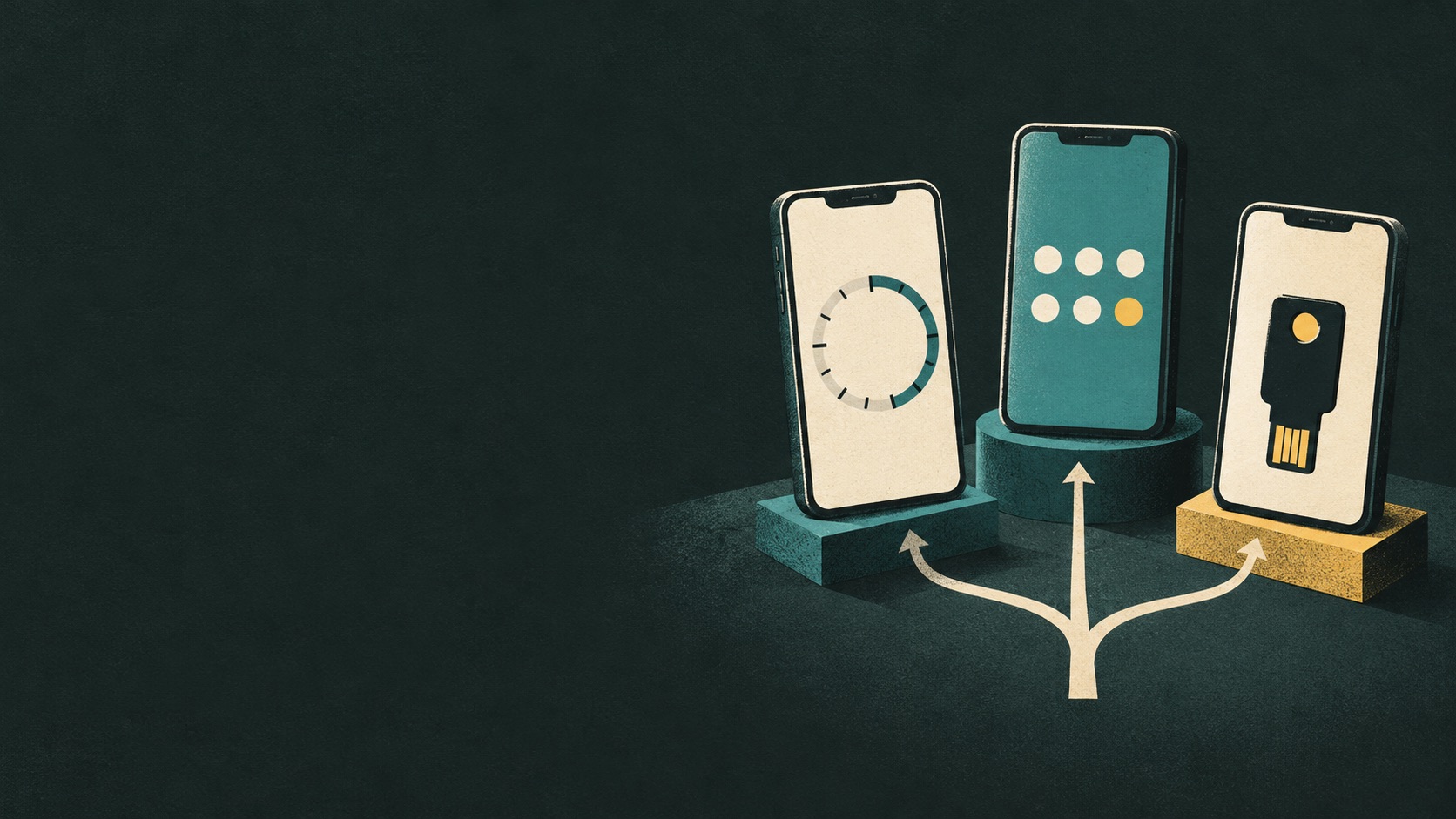
Want an easier phone upgrade, or codes right on your computer? Compare sync, migration and desktop use across familiar authenticators.
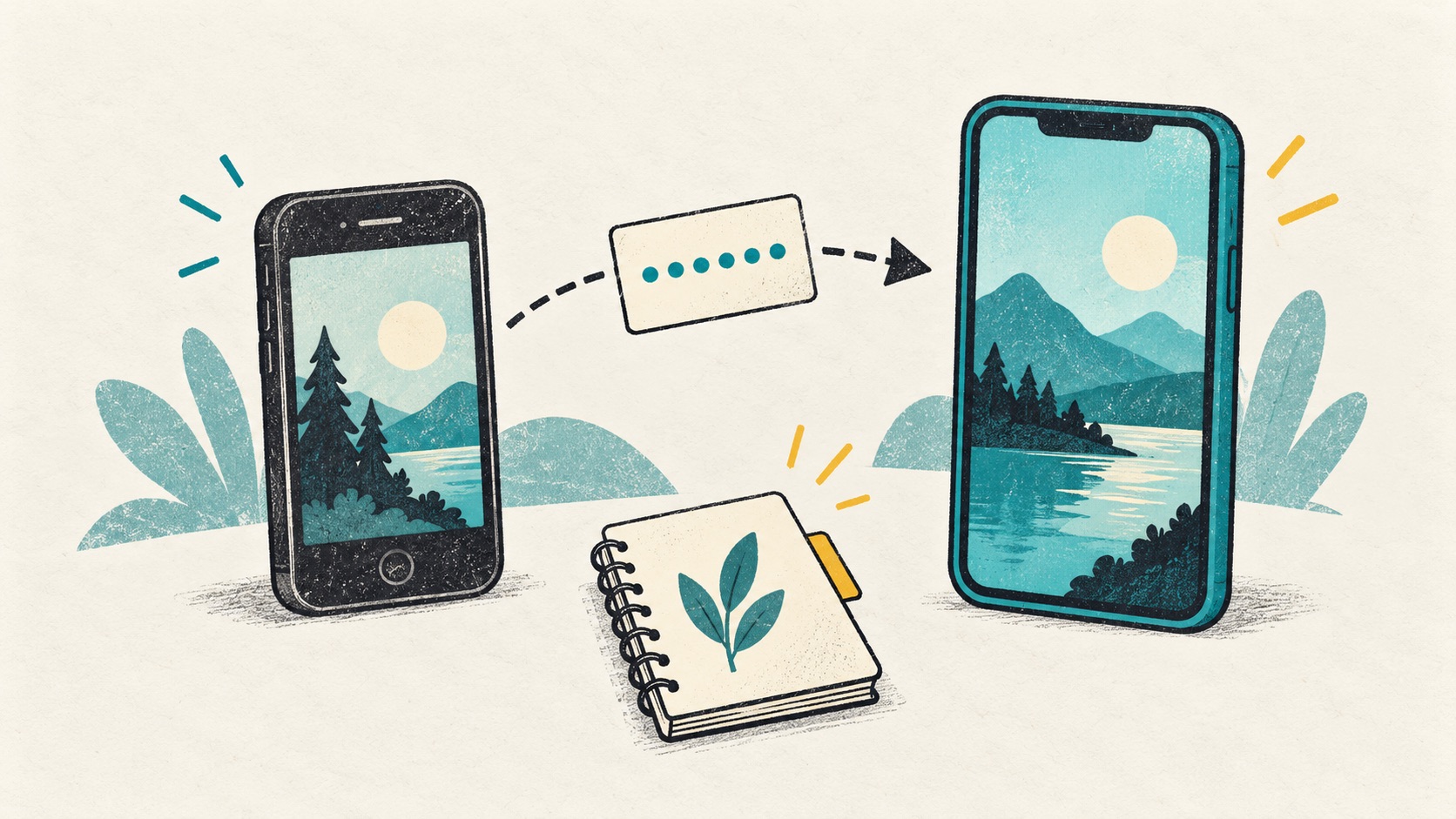
With the old phone, start with transfer. Without it, look for sync, backups and recovery codes. Find the next step for your situation.
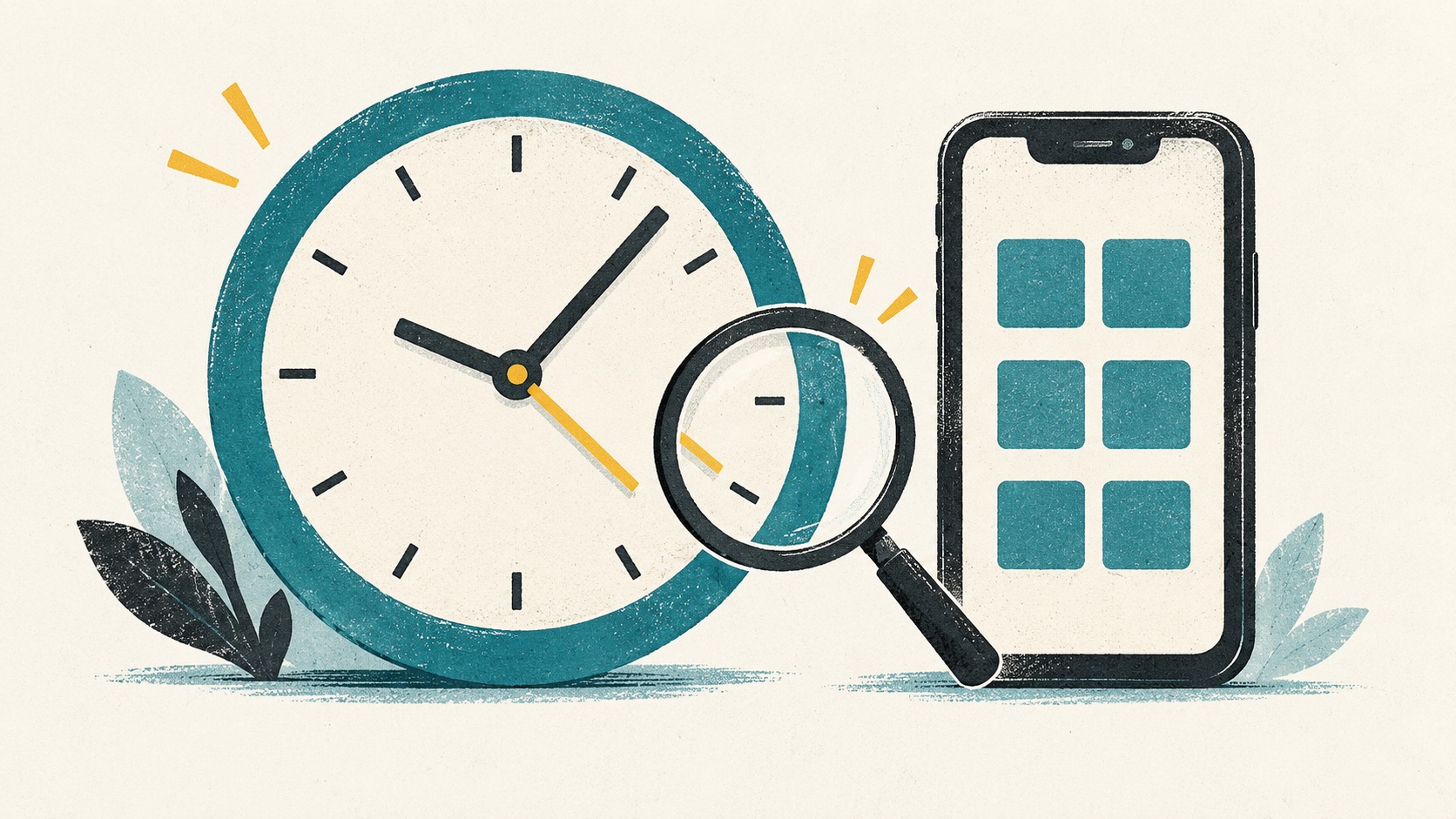
The numbers look right, but the website rejects them. Check the account, countdown and device clock before setting everything up again.
 ChromeChrome Web Store
Install
ChromeChrome Web Store
Install
 EdgeMicrosoft Edge Add-ons
Install
EdgeMicrosoft Edge Add-ons
Install
 FirefoxFirefox Add-ons
Install
FirefoxFirefox Add-ons
Install
 SafariiPhone / iPad / Mac
Coming soon
SafariiPhone / iPad / Mac
Coming soon