Migration & recovery
New phone or lost phone: how to get your codes back
With the old phone, start with transfer. Without it, look for sync, backups and recovery codes. Find the next step for your situation.
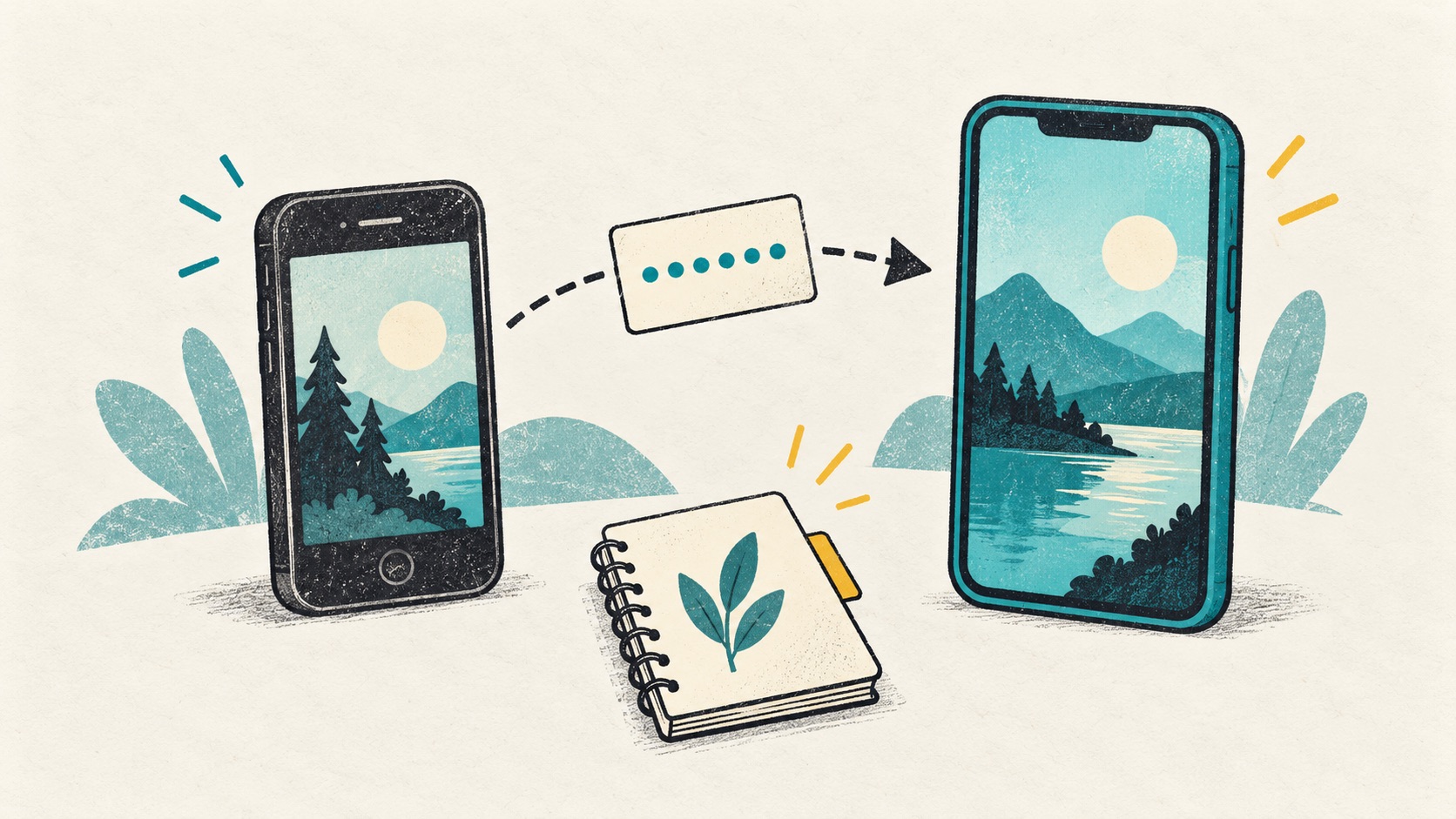
If you still have the old phone, move the entries and test a sign-in on the new one. If it is lost, check completed cloud sync, backup files and website recovery codes, then follow the route you have available.
In this article
Look for the old device, synced entries, and backups
| Available | First action |
|---|---|
| Working old phone | Keep it intact and use a supported transfer method |
| Previously enabled sync | Check the sync account and whether data actually finished uploading |
| Backup file | Check its origin, format and required passphrase |
| Recovery code or backup credential | Use the relevant service's official recovery flow |
| None of these | Request account recovery; success is not guaranteed |
List your primary email, work account and other important services. Having the authenticator app installed is not proof that every credential has been restored.
Old phone available: transfer, then test
- Check the account list and sync state while keeping the old device usable.
- Use the product's supported sync, export/transfer or service rebinding process. Do not assume backup formats work across different authenticators.
- Check labels and account counts on the new phone, then complete a normal sign-in to important services.
- Only after new and backup access work should you remove the old device. Erase it and unlink it appropriately before selling it.
Phone lost: use the service's backup access
Keep an existing signed-in computer session if you have one. For each service, check registered backup keys, recovery codes or other offered methods, then replace the affected credential through its settings.
Recovery codes belong to individual services, not to one universal authenticator recovery system. Google's backup codes become inactive after use, and generating a new set invalidates the old set. Check its rules rather than assuming all services behave identically.
If someone could unlock the lost device, review important services' active sessions and registered devices as well. Recovering access and removing untrusted access are separate tasks.
Keep both the backup and its passphrase
An export may contain the secrets used to generate codes. Store it somewhere protected and include its date and source in the name so you can find it during the move.
Authenticator Cloud app backups use passphrase encryption. Desktop extension exports are unencrypted JSON and need separate protection. Restore each format with the matching client, or use Pro sync to share entries across clients.
Keep the backup passphrase separately and make sure you can reach it after changing phones. Once restored, try a normal login at a familiar website.
No backup or recovery code left?
Use each affected service's official account recovery process. An authenticator cannot derive a lost secret from an account name, email address or an old one-time code.
Some services cannot restore access without recovery credentials. Be wary of paid promises to bypass two-factor authentication, and do not expose other accounts while trying to recover one.
Keep this checklist for your next phone
- Sync actually finished, rather than merely showing a signed-in account.
- The backup restores on a compatible device and its passphrase is stored separately.
- Important services have current recovery codes or another usable login method.
- The new device has passed a real sign-in test while the old device is still available.
References
See the official guides above for detailed setup instructions.

Authenticator Cloud Pro sync helps you retrieve synced entries on devices signed into the same account.