Troubleshooting
Authenticator code not working? Check these six things
The numbers look right, but the website rejects them. Check the account, countdown and device clock before setting everything up again.
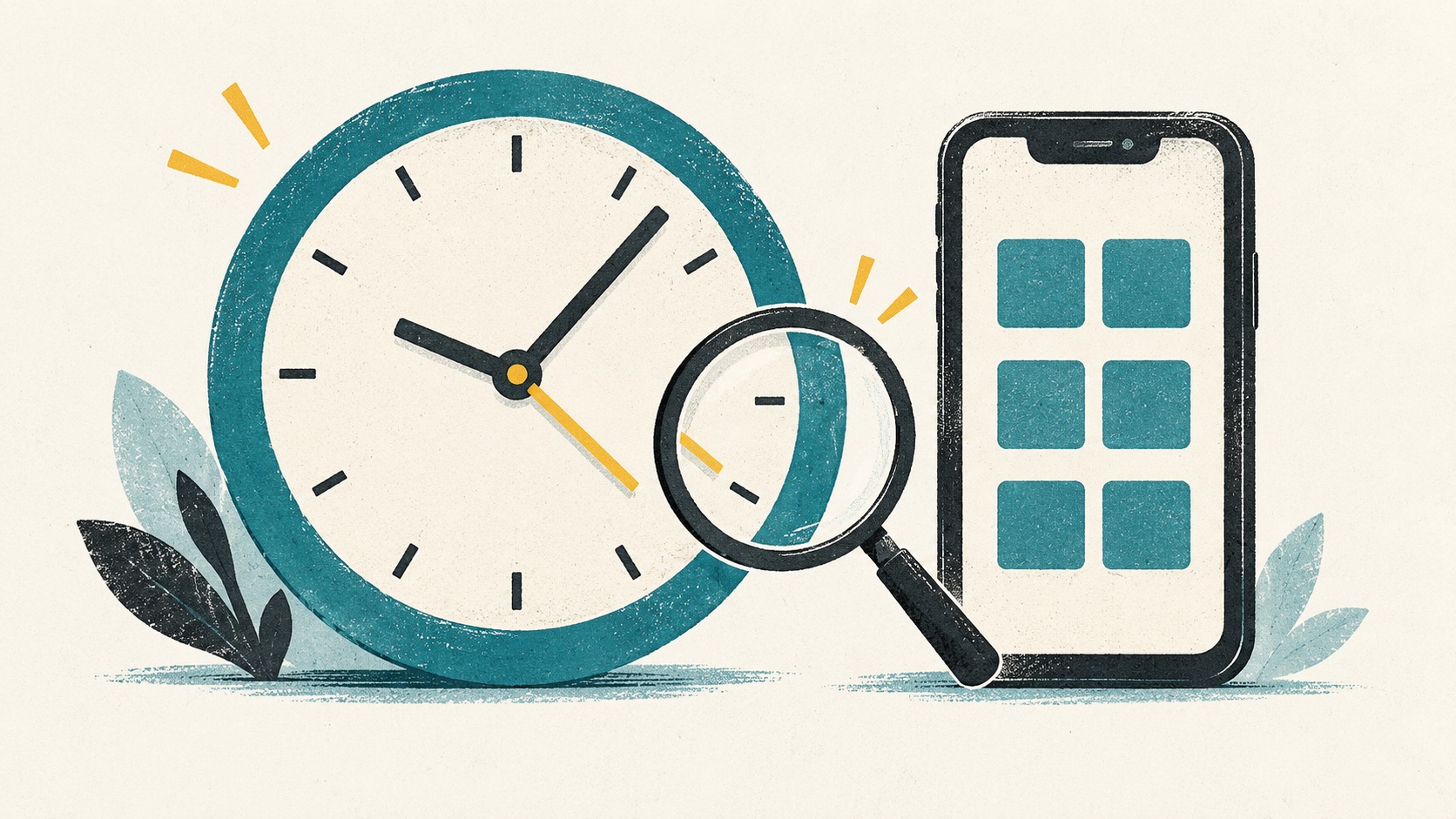
Start with three checks: the account you selected, whether the code has just expired and whether your device clock is correct. Keep the existing entry while you work through the steps rather than deleting and recreating it straight away.
In this article
1. Check what kind of code is requested
Email codes, SMS codes, authenticator codes and recovery codes are different credentials. Read the instructions beside the field rather than assuming any six-digit number will work.
A request to approve a sign-in notification is a different flow again. Select the correct method offered by the service before troubleshooting a rotating code.
2. Match both the service and account
Personal, work and test accounts for the same service can each have a separate entry. Compare the account you are signing into with the label in your authenticator; the service icon alone is not enough.
If you recently reset two-factor authentication, an old entry may still be present. Identify the current binding before changing multiple entries.
3. Wait for a fresh code and try once
When the timer is almost finished, wait for the next code before copying it. Preserve leading zeroes and replace any stale autofilled value rather than appending to it.
TOTP codes change with time. Thirty seconds is a common time step, not a universal setting. RFC 6238 describes the mechanism. Repeated rapid submissions can also run into a service's attempt limits.
4. Check the clock on the generating device
Enable automatic time on the phone or computer generating the code, verify the actual time, then try a fresh code. A different displayed timezone is not automatically the problem; an incorrect underlying clock can be.
Avoid following obsolete menu instructions. Google's current guidance says Authenticator 7.0 removed in-app time correction and uses the operating system clock. See the official help page.
5. Check that setup actually finished
Scanning a QR code adds a credential to the app. Many services still require you to enter a generated code and confirm before enabling it. Return to the official settings page you opened yourself and check the setup state.
For manual setup, take the type, digits, algorithm and period from the service. Do not change parameters at random or upload a setup QR code to an online decoder.
6. Keep access while using a backup method
Keep an existing signed-in session. Use the service's backup security key, recovery code or official recovery flow. If rebinding is necessary, confirm an alternative works before removing the original credential.
A lockout, retry delay or network failure is not fixed simply by switching authenticator brands. Follow the service's guidance, and never give secrets to someone claiming they can bypass account recovery.
References
- RFC 6238: Time-based one-time password algorithm
- Google: Get verification codes with Authenticator
- Google: Fix common issues with 2-Step Verification
See the official guides above for detailed setup instructions.

Find the account in Authenticator Cloud, copy its code or fill it directly on a supported page.