Product guides
Authenticator Cloud: the same codes on your phone and computer
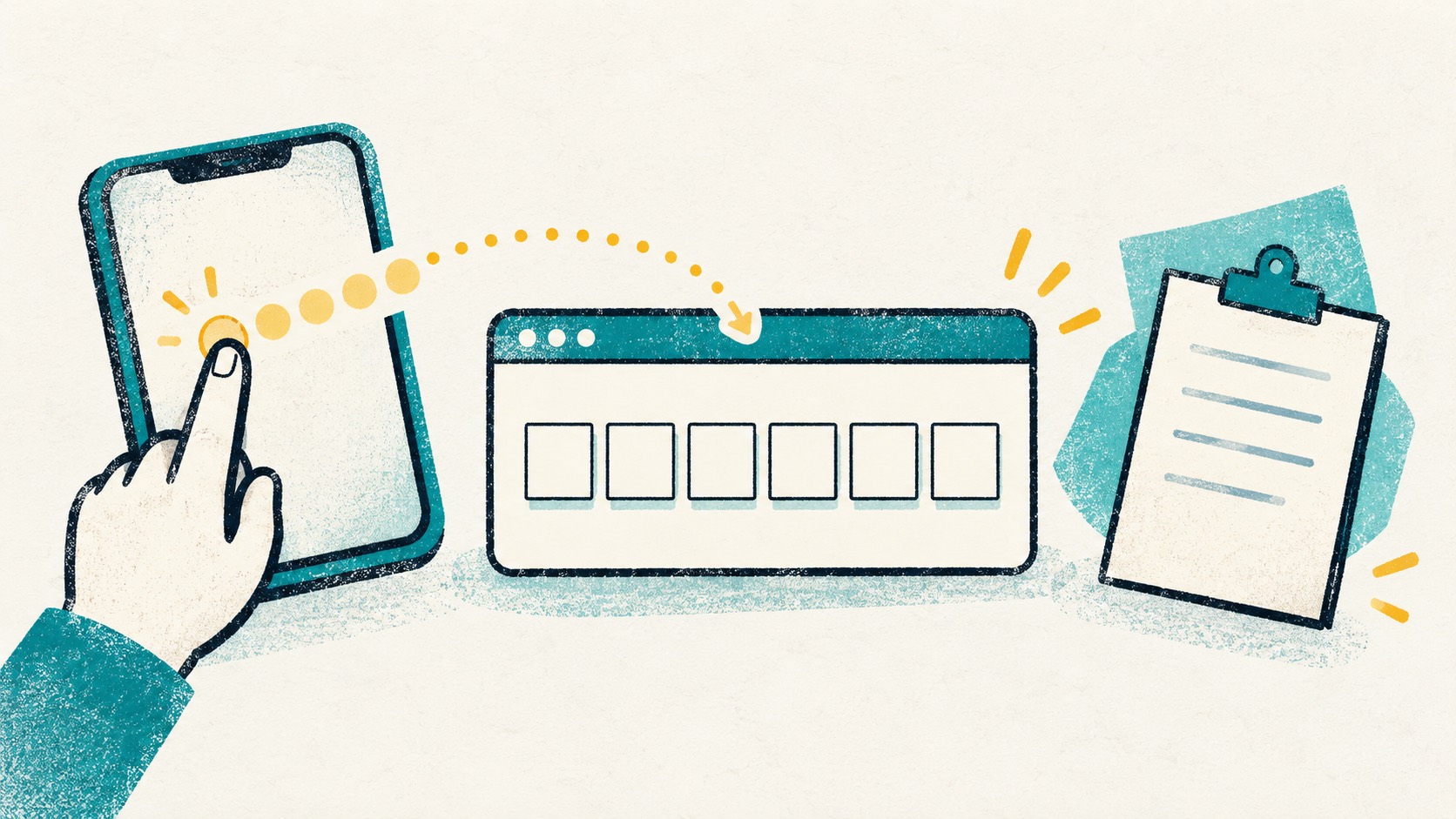
Add an account on your phone and use it on your computer. Pro sync keeps the app and browser extension working together.
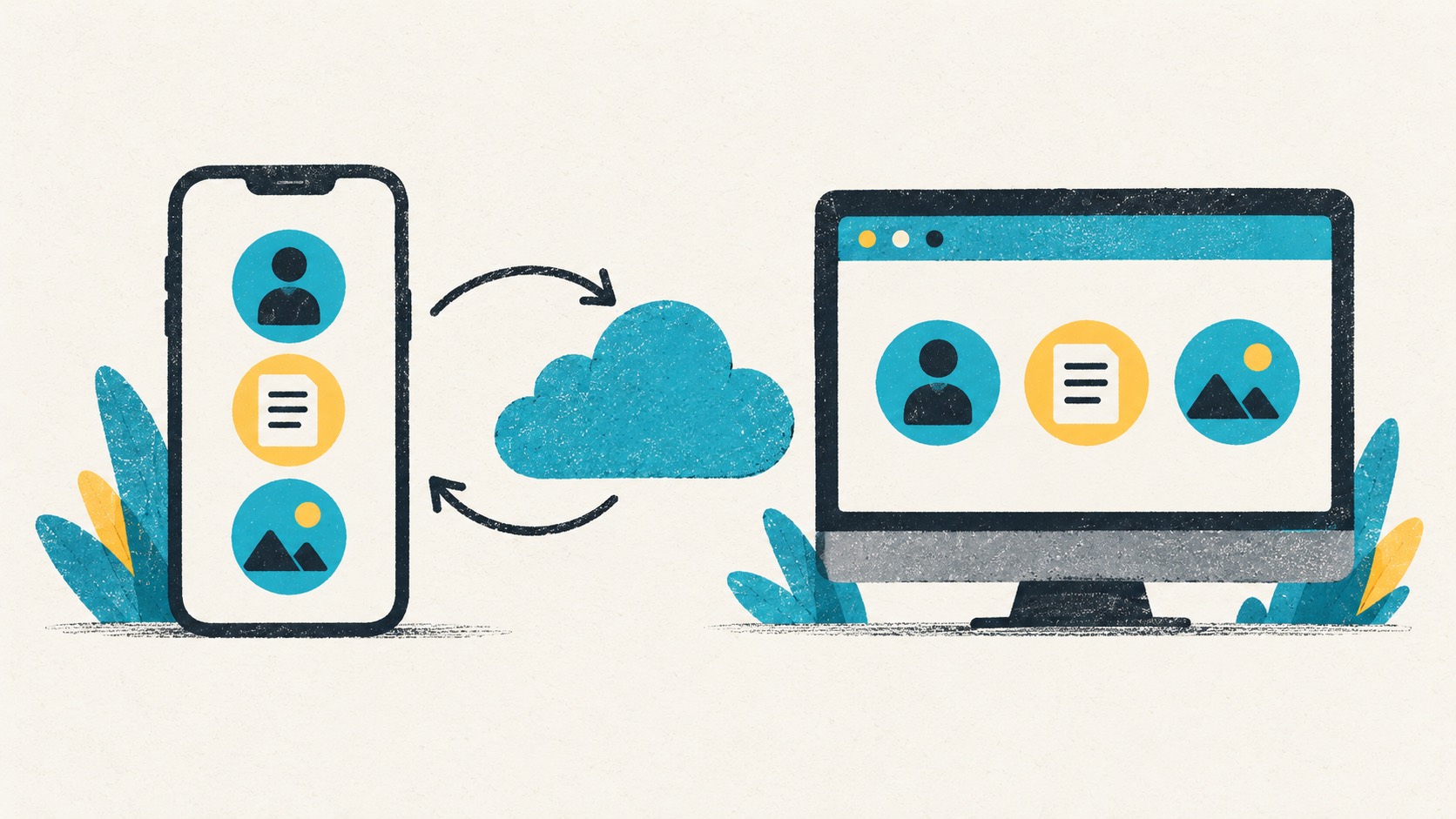
Sign into the same Authenticator Cloud account in the app and extension, then complete Pro sync. Your synced entries are available on both. When you change devices, sign into that account to bring those entries across.
In this article
Sign into the same account on both devices
Sign into the same Authenticator Cloud account in the phone app and desktop extension, and check that Pro is active. Compare the account email during the initial setup.
If you keep separate work and personal browser profiles, sign into the extension in the profile you normally use.
Sync after adding an entry
Add an entry on one device, finish the website's code confirmation, then check the sync status. Once complete, open the other client and look for the new entry.
Clear service and account names make entries easy to find on both devices. Add an email address or a work or personal label when names are similar.
Not seeing an entry on the other device?
Check that both clients use the same account, then check Pro status and connectivity. Reopen the list after syncing. If there is an error, use its message to guide the next step.
If the entry is present but the website rejects its code, check automatic time settings and make sure you selected the site's current enrollment.
Bring synced entries to your next device
After replacing a phone or reinstalling a computer, install Authenticator Cloud and sign into the same account to retrieve records already synced to the cloud. Check your usual entries before clearing the old device.
After adding an important account, take a moment to confirm the sync finished. Your codes will be easier to find wherever you next sign in.
References
See the official guides above for detailed setup instructions.

Compare monthly, yearly and lifetime options for the way you use Authenticator Cloud.