Product guides
Copy and fill codes with Authenticator Cloud
Find your code right in the browser. Copy it into the sign-in form or fill it directly on supported pages.
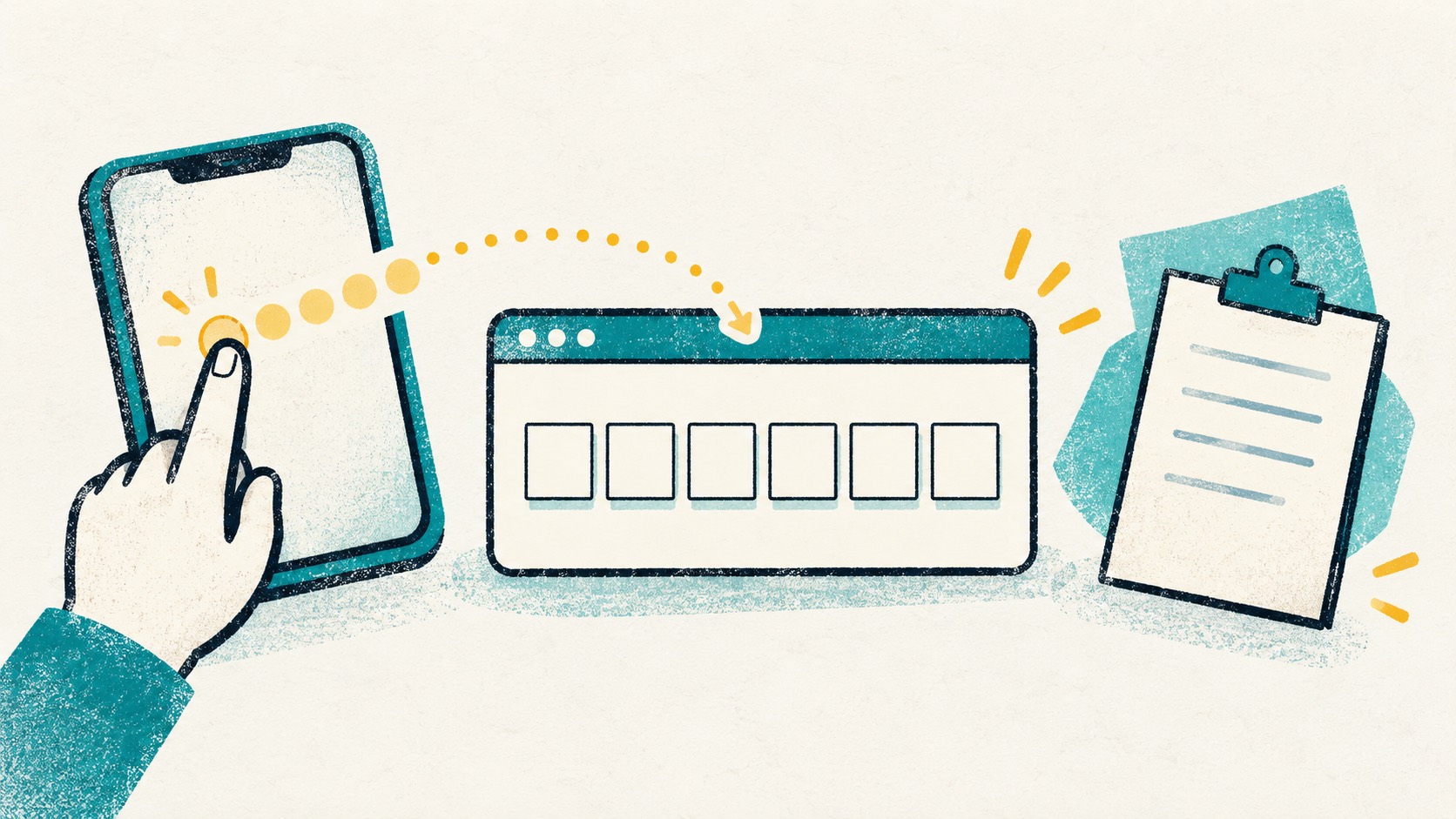
Open the extension, find the account you are signing into, then copy or fill its code. Direct filling works on supported pages; copying is handy when you want to choose the field yourself.
In this article
Get a code without reaching for your phone
When a website asks for a code, open the Authenticator Cloud extension and search for the service or account. You can stay in your browser instead of switching to your phone and typing the digits by hand.
For services with several accounts, include an email address or a label such as work or personal. It makes the right entry much easier to find.
Copy, paste, and continue
Copy the current code, return to the website, and paste it into the verification field. If the countdown is nearly over, wait for the next code before copying.
Copying is useful when you want to choose the field yourself, especially while working across several websites.
Use fill to skip the paste step
On supported pages, choose an entry and use the fill button to put its code into the page. Allow the extension to access that website if your browser asks.
For fields with an unusual layout or an extra confirmation step, use copy and paste instead. Both options are available from the extension.
Keep your accounts handy on phone and desktop
With Pro, sign into the same Authenticator Cloud account in the app and desktop extension and complete a sync. Use your computer at your desk and your phone when you are away, without maintaining two separate lists.
The Safari extension on iPhone and iPad uses entries shared from the app. Set up sharing in the app, then enable the extension in Safari.
References
See the official guides above for detailed setup instructions.

Pro sync connects the app and extension so you can keep the same code library on both.