Product guides
Where does Authenticator Cloud store your codes?
Local storage, cloud sync and backup files serve different purposes. Here is how to use each for daily access and device changes.

Your authenticator entries can stay on the device. Pro sync makes them available on other devices signed into the same account. For a separate file copy, use an app backup protected by a passphrase or store the extension's JSON export securely.
In this article
Your everyday codes are on your device
Once you add an entry to Authenticator Cloud, you can view and copy its codes locally. Local use is free and does not require a cloud account.
An exported backup is a separate file. Your list is for everyday access; a backup is useful when moving devices or reinstalling.
Use the backup format for your client
App backups are encrypted with a passphrase. Keep both the file and its passphrase, since you will need them when restoring.
Desktop extension exports are unencrypted JSON files containing account secrets. Encrypt them separately or keep them in protected storage. App and extension backups use different formats, so restore each with the matching client. Use Pro sync to share entries between phone and desktop.
Use Pro to keep devices in sync
Sign into the same account in the app and extension, activate Pro, and complete a sync to use the same entries on both. After adding an account, open the list on your other device to check it has arrived.
When you replace a phone or reinstall a computer, install the client and sign in to retrieve records already synced to the cloud. Check your usual accounts on the new device before clearing the old one.
Make backups easy to find
Include the export date and source in the filename, such as phone backup or desktop extension backup. It will be easier to choose the latest file when you need it.
Keep track of your entries, backup files, and website recovery codes separately. A note of where they are stored is enough; there is no need to copy secrets or passwords into the checklist.
References
- Authenticator Cloud: Privacy policy
- Authenticator Cloud: Plans and backup formats
- Authenticator Cloud: Terms
See the official guides above for detailed setup instructions.

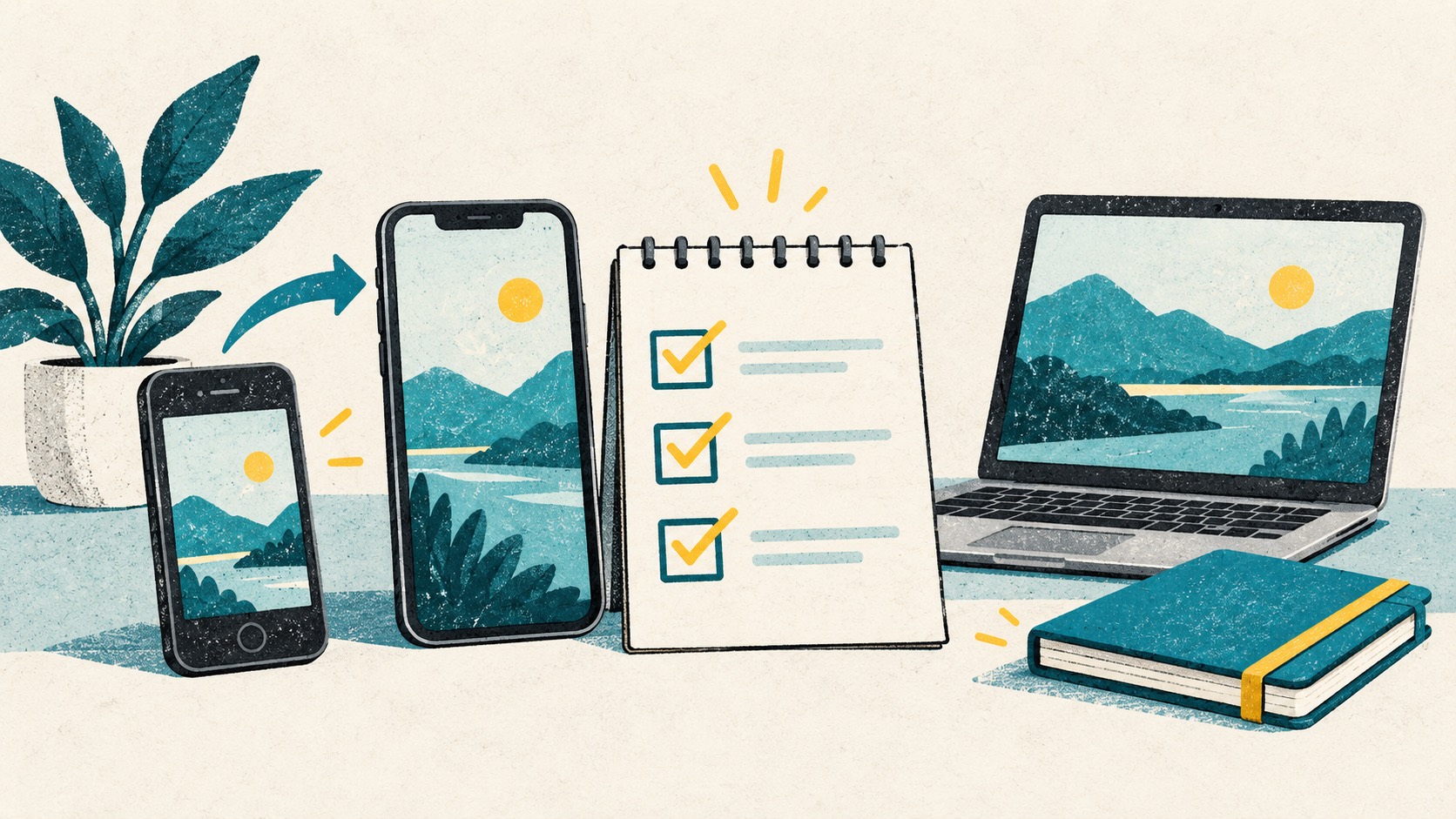
Follow the checklist to prepare sync, backups and access on your new phone or computer.