Product guides
Authenticator Cloud Free or Pro: which should you choose?
Manage codes locally for free, or choose Pro to sync your phone and computer. Pick the setup that fits how you sign in.

Start with Free to add accounts, view codes and keep local backups. If you switch between a phone and computer, Pro connects the app and browser extension so your synced entries are available across devices.
In this article
Start free if you use one device
The free version lets you add and manage local entries and view and copy their codes. On desktop, the browser extension can also scan setup QR codes and copy or fill codes on supported pages.
If one device covers your needs, start there. You can add cross-device sync later.
Choose Pro for phone and desktop
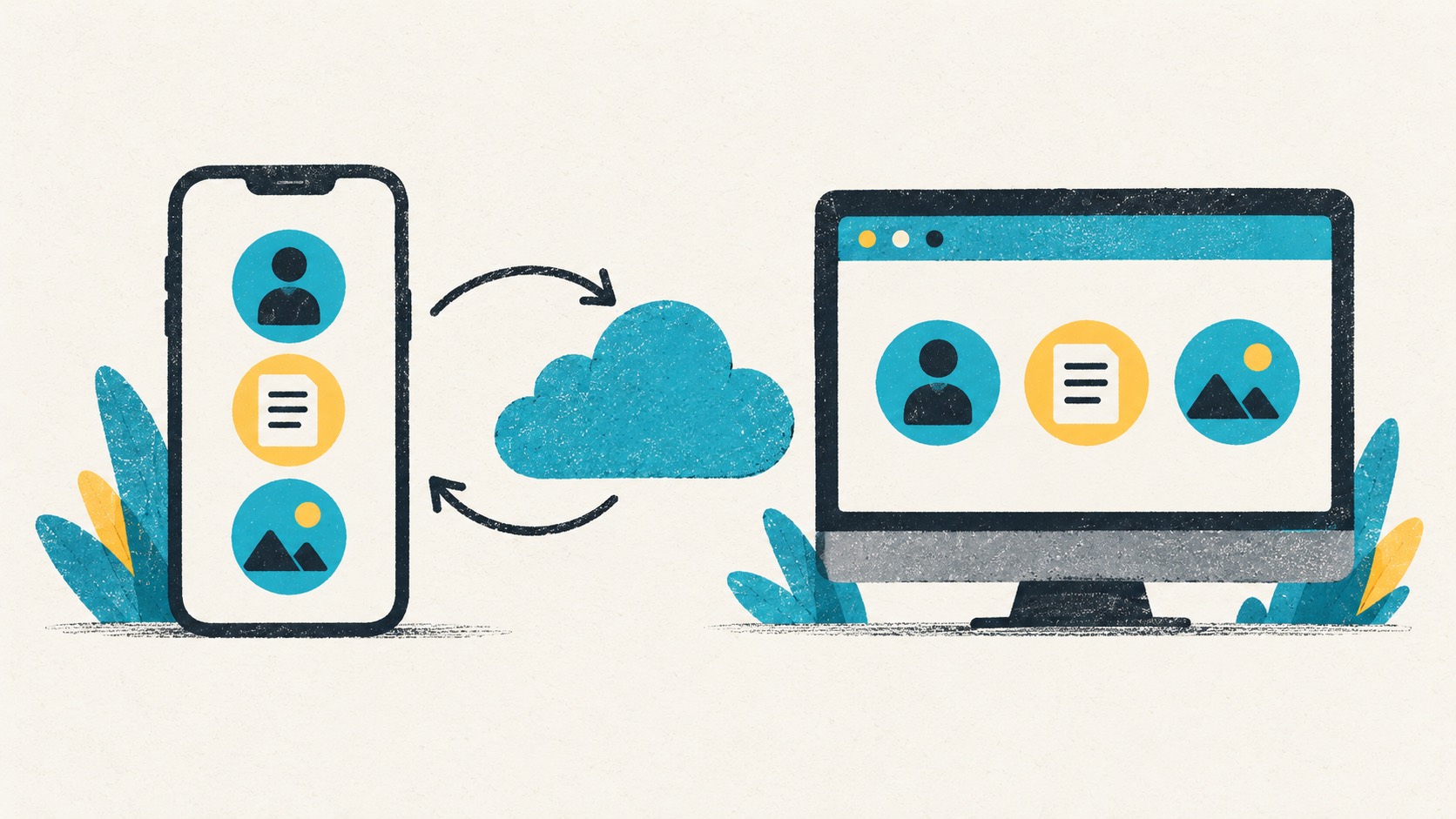
Pro adds cloud sync between the app and browser extension. Sign into the same account and complete a sync to use the same entries on your phone and computer.
Previously synced records can also be retrieved after replacing a phone or reinstalling a computer. For people who switch devices often, the benefit is simple: one list to maintain and less reaching for another device.
Pick monthly, yearly, or lifetime
Monthly is useful for trying Pro over a shorter period. If you plan to keep using it, compare the yearly and lifetime options. Check the purchase screen for current prices and currency.
After an in-app purchase, follow the prompts and check your membership status. If you already purchased, use Restore Purchases and sign into the Authenticator Cloud account you normally use.
Choose around the devices you actually use
If you mostly get codes on your phone, start with free local use. If you often sign into websites on a computer and want the same list on your phone, Pro is a better fit.
Clear account labels help with either plan. Add your usual accounts, try a complete login, and enable sync when you need it.
References
See the official guides above for detailed setup instructions.

Go from scanning a setup QR to using your first Authenticator Cloud code.