Product guides
Move Authenticator Cloud to a new phone or computer
Get your codes onto the new device, save a backup, then retire the old one. Work through the steps without rushing the move.
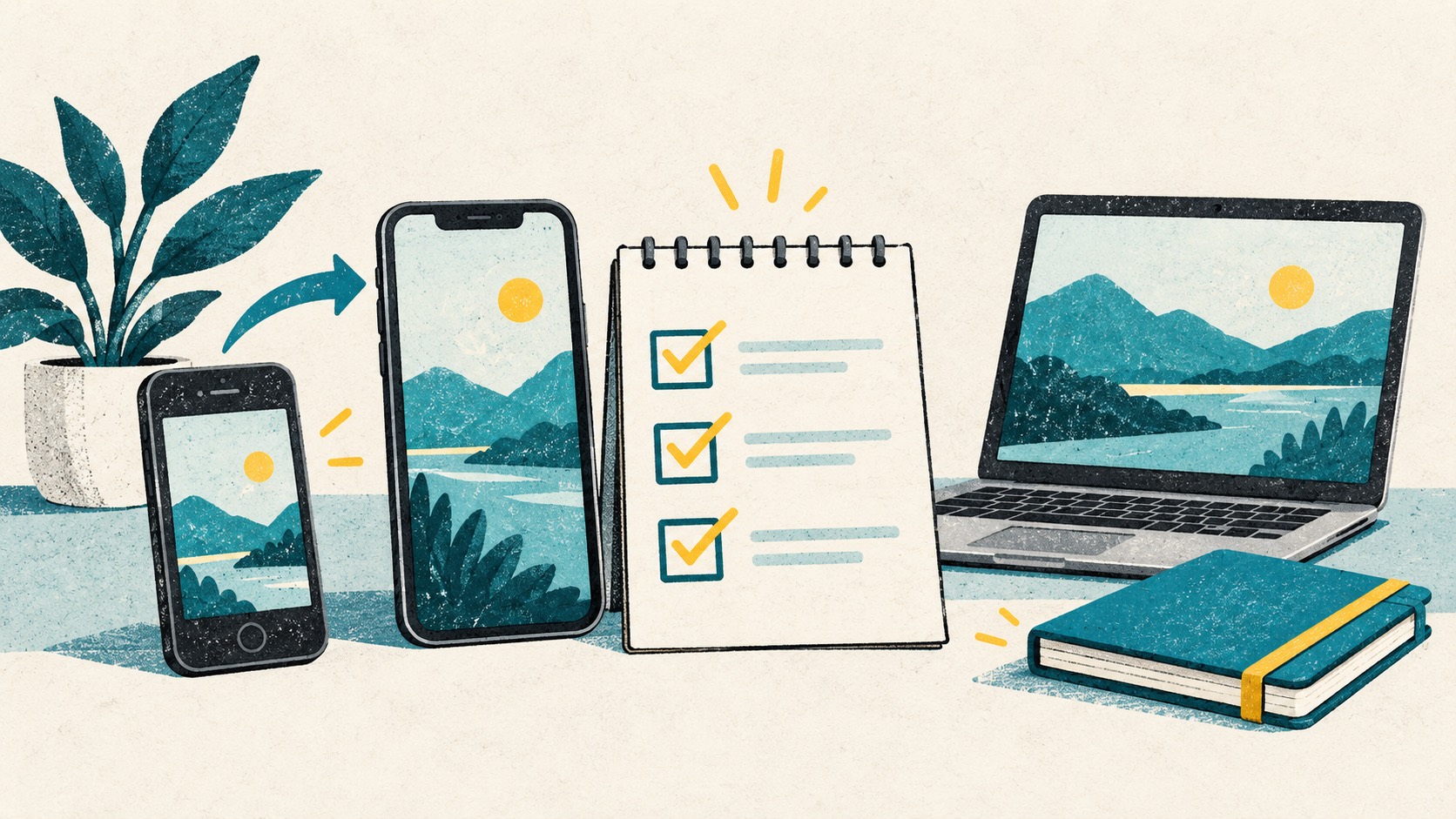
Install the app or extension on your new device, sign into your existing Authenticator Cloud account and check Pro sync. Review the synced entries and test a sign-in. Once your backups and recovery details are stored, you can retire the old device.
In this article
Start with the accounts you use
Before moving, open Authenticator Cloud and note your services and account names. Start with your main email, work accounts, code hosting, and cloud services.
Use an email address or purpose to distinguish multiple accounts at the same service. A short list is easier to check than a total count.
Sign in on the new device and check your list
If you use Pro, sign into the same Authenticator Cloud account on the new phone or desktop extension, complete a sync, and compare the entries with your checklist.
Try a normal login at a familiar website. Finding the entry and successfully using its code confirms the move is working.
Save a backup while you are there
The app can export a passphrase-encrypted backup. The desktop extension exports JSON with unencrypted secrets, which needs separate encryption or protected storage. Restore files with the client that supports their format.
Store the file somewhere that will survive the move or reinstall, and make sure you can find its passphrase. This is also a good time to organize website recovery codes.
Clear the old device after the move
Once your regular accounts are checked, sign out and clear or erase the old device as appropriate. Keeping an old phone for a few days lets you try your usual logins on the new one first.
After adding an important account in future, complete a sync or refresh your backup. Keep the checklist for your next move.
References
See the official guides above for detailed setup instructions.

Learn how app backups and extension exports fit into your device-change plan.