Product guides
Getting started with Authenticator Cloud
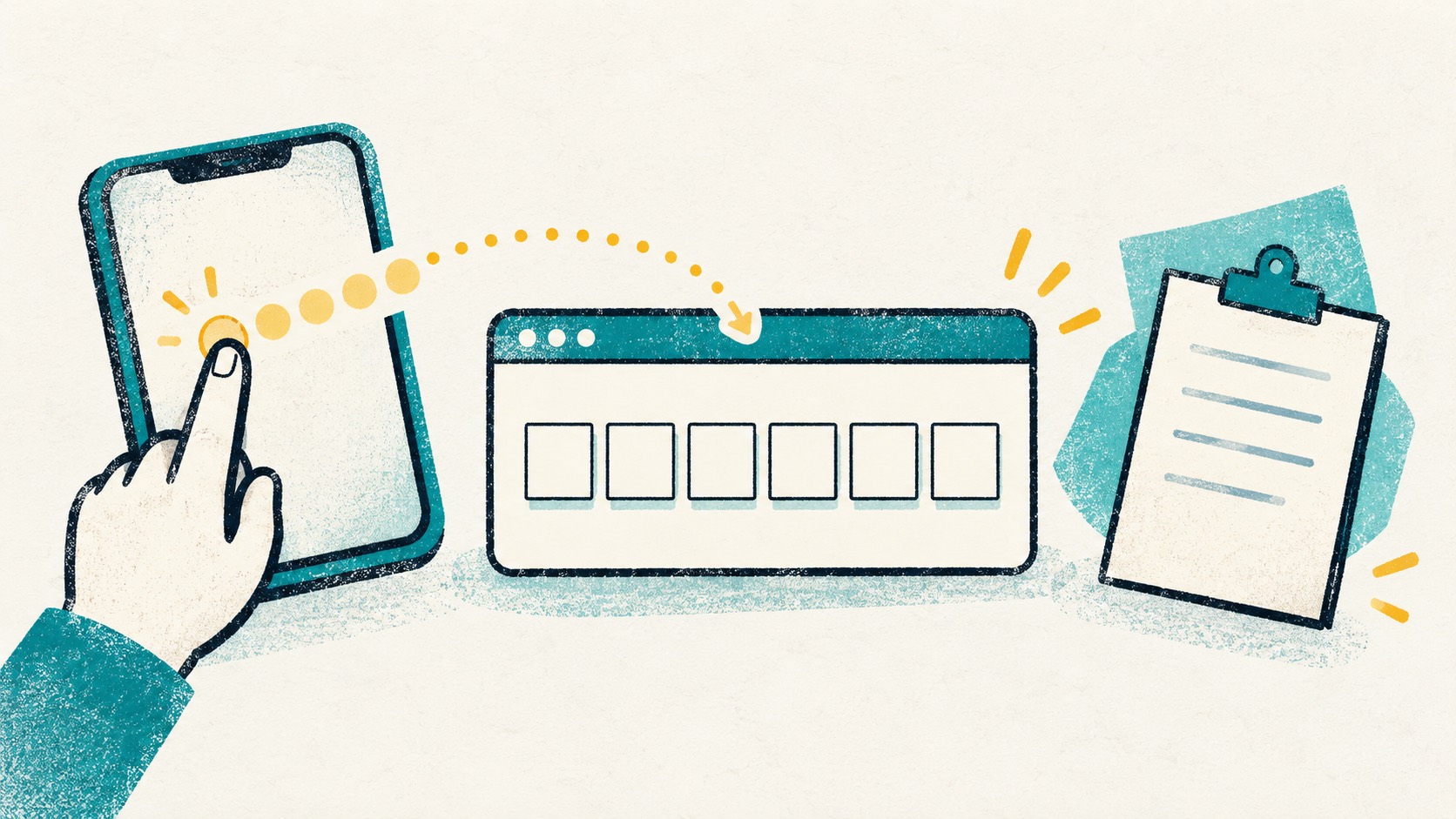
Open a website's two-factor settings, scan its QR and enter a code to finish. Here is the process from the start.

Choose an authenticator app in the website's security settings, add its QR or setup key to Authenticator Cloud, then enter the generated code back on the website. Local use is free; choose Pro when you want phone and computer sync.
In this article
Start with the app or browser extension
Choose the app if you usually get codes on your phone, or the extension if you often sign in on a computer. Follow the official download links on the website.
You do not need a cloud account to add local entries. Start with a service you use often, try getting and copying a code, and add the rest as you go.
Open the website's two-factor settings
Go to the security settings of the website you want to protect and choose an authenticator app for two-factor verification. It will show a setup QR code and may offer a manual setup key.
Scan the QR code with Authenticator Cloud or enter the setup details manually. Include both the service and account in the name so it is easy to find later. Keep setup QR codes and secrets on your own devices.
Enter a code to finish setup
Once added, Authenticator Cloud starts showing rotating codes. Return to the website, enter the current code, and finish its confirmation steps.
Save any recovery codes the website provides. Try a normal login afterward so you know the routine for next time.
Enable sync when you want another device
With Pro, sign into the same account in the app and extension and complete a sync to share your list. During first setup, check that the entry appears on your other device.
You can also export a backup. App backups use passphrase encryption; desktop extension JSON exports need separate protection. Keep the matching file and any required passphrase for a future move.
References
See the official guides above for detailed setup instructions.

Set up Pro sync to keep your authenticator entries handy on the devices you use.