Troubleshooting
Why are two devices showing different codes for the same account?
One device may have refreshed first, or the clocks and setup records may differ. Here is where to check.
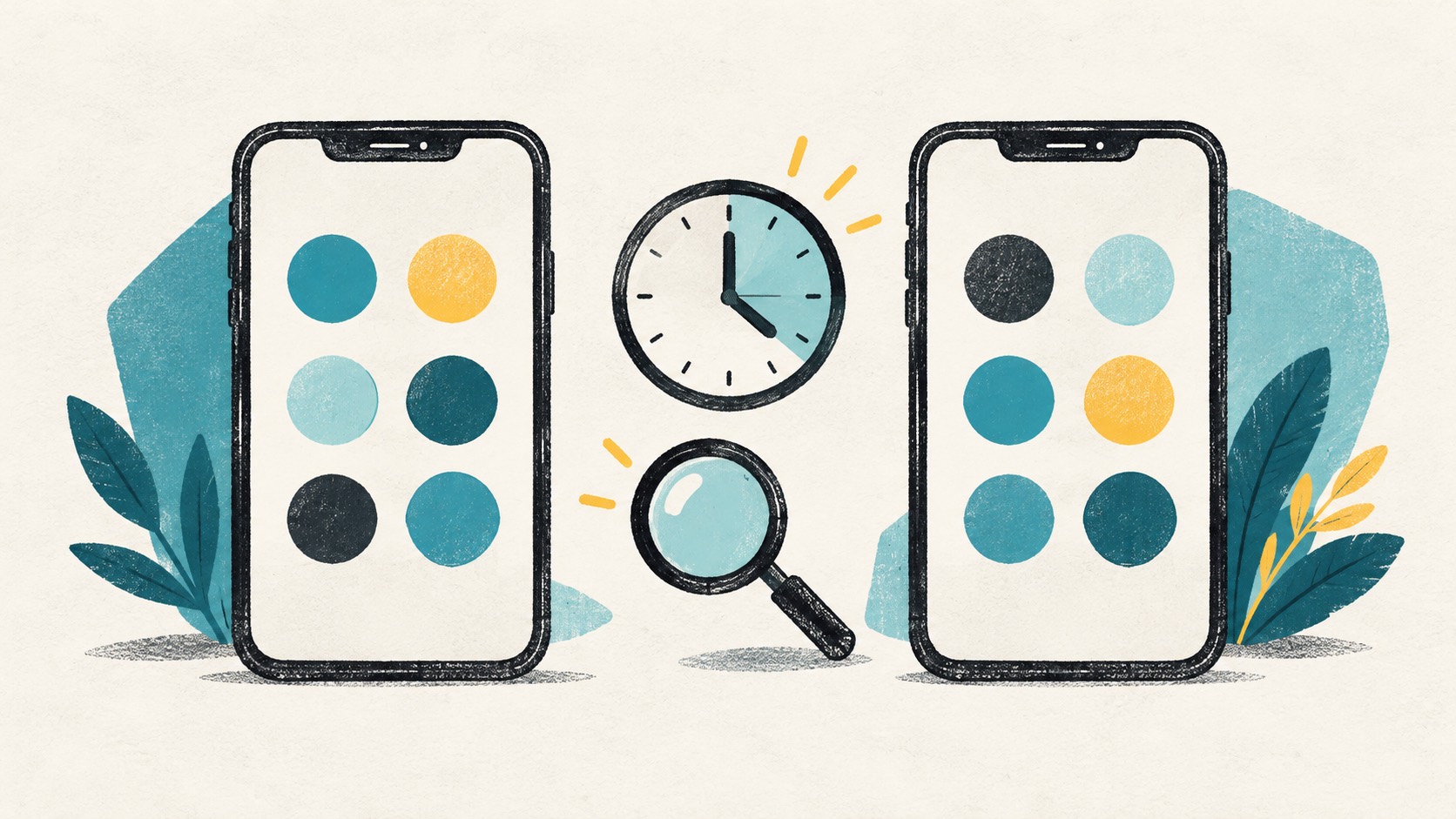
The same TOTP secret and settings produce the same code within the same time interval. Wait for both devices to refresh, then compare their clocks and account entries to narrow down the cause.
In this article
Compare after both codes refresh
Place the devices together and compare after both have entered a new interval. Different numbers when one has just refreshed and the other has one second remaining do not establish a sync failure.
Note how long the difference lasts; support does not need the numbers themselves. Test only on the genuine service you intended to use, not on a link supplied by a stranger.
Check automatic time on both devices
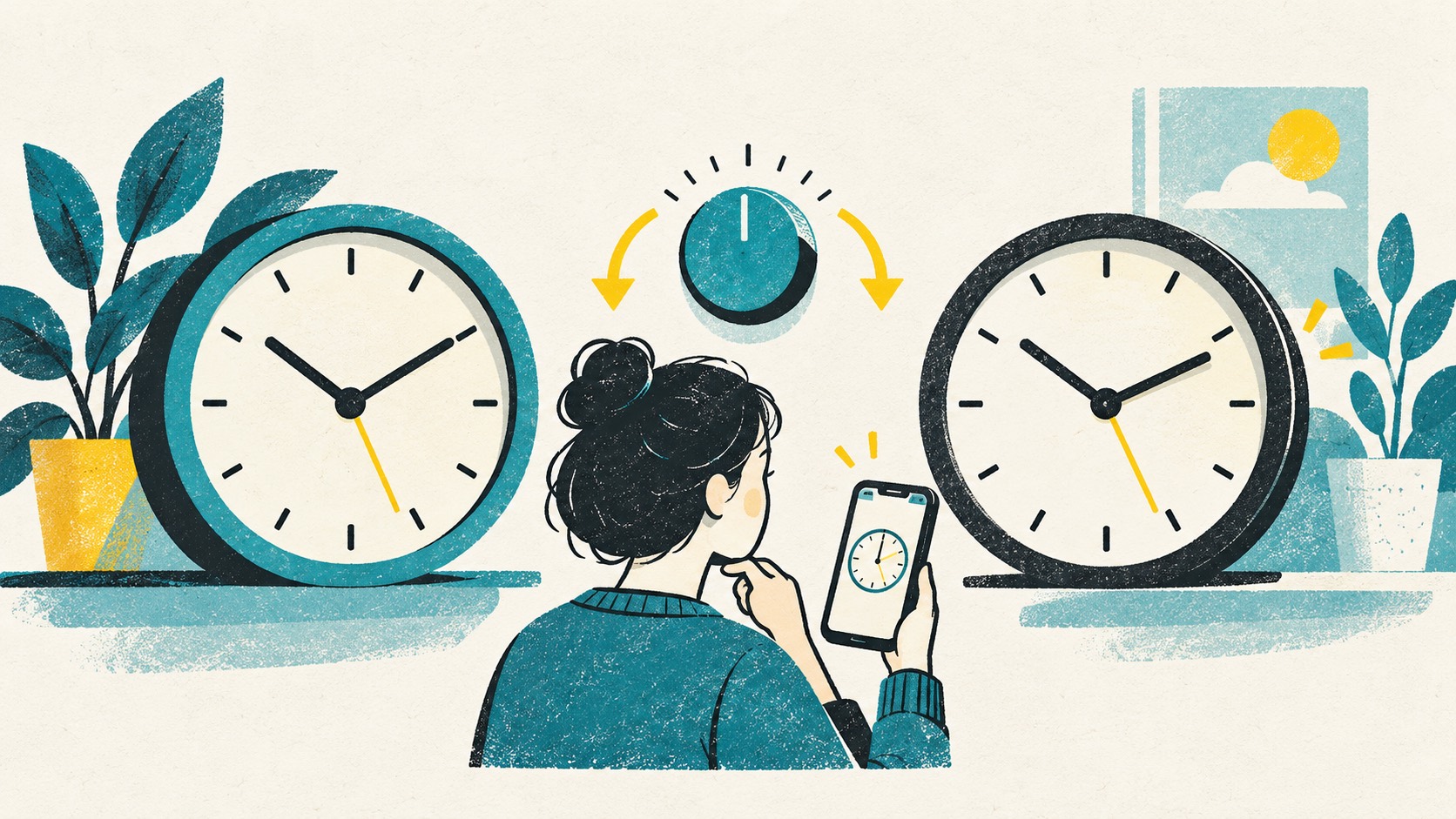
Check the date, automatic time and actual time accuracy. Different displayed time zones do not necessarily mean different absolute time; manually forcing the displayed hours to match can introduce an error.
If only one device fails, fix its clock and wait for another interval before changing anything else. Editing parameters on both devices at once makes the result difficult to diagnose.
Check that both entries use the same enrollment
A newly generated setup QR can create a different enrollment. A same-named entry imported from an older backup may no longer represent the active setup.
Keep the working entry while checking the others' origin, code length, period and algorithm. Do not guess secrets or delete entries merely to make a duplicate label disappear.
Check the sync account and entry names
In Authenticator Cloud, check that the app and extension use the same account, Pro is active, and a sync has completed. Compare service and account names to find the entry enrolled at the website.
If you contact support, share client versions, the steps you took, and a redacted error message. Keep setup QR codes, secrets, backups, and live codes on your own devices.
References
See the official guides above for detailed setup instructions.
Authenticator Cloud Pro sync keeps entries together so they are easier to find on your phone and computer.