Security basics
The setup key below a QR code is not your six-digit code
Use the setup key to add an authenticator account, and the current code when you sign in. Here is what the QR, Base32 string and changing digits each do.
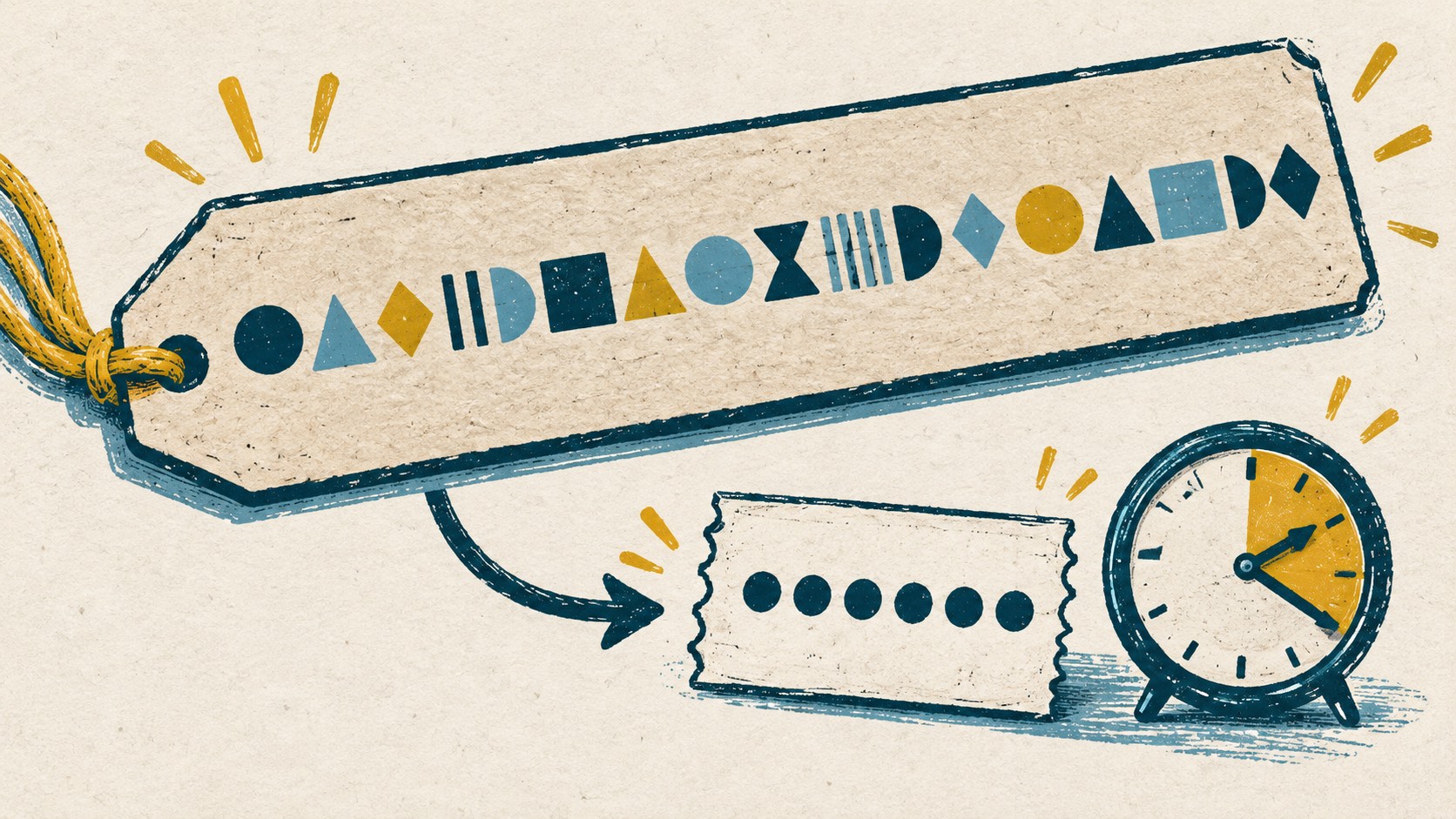
A setup key establishes the authenticator entry; a current code is calculated from that key and the relevant parameters. A typical setup QR carries the key together with account settings. When the same setup page offers a manual key, it usually gives you another way to add the entry.
In this article
Start with the step you are on
| What you see | What it is for |
|---|---|
| Setup key | Establishes an entry and participates in later code calculations |
| Setup QR | Passes the key and relevant settings to an authenticator |
| Current code | Is entered when the website asks for that verification step |
When you first add an authenticator to a website, its setup page may show a QR, a long string of letters and a field asking for a verification code. They serve different purposes. The long string establishes an entry in your authenticator; the short code lets you confirm that setup on the website.
On a later sign-in, the website normally wants the code currently shown by your authenticator. Do not paste the original setup key into that field or treat one six-digit code as the material needed to add the account on another device.
A setup QR carries more than six digits
A common format for authenticator setup is otpauth. Google's published format puts the setup key in a secret parameter, uses a label to identify the account and can carry parameters such as type, algorithm, digits or period. Scanning reads those settings into an authenticator.
When that same page offers manual entry, its letter string usually represents the key from those settings. Follow the website's type and parameter instructions as well; seeing digits appear is not, by itself, confirmation that the settings match.
Why keys often contain letters and the digits 2 to 7
These keys commonly use Base32. The standard alphabet in RFC 4648 uses A to Z and 2 to 7 to represent bytes as text. It changes their representation rather than creating a different secret.
In the RFC's public encoding examples, foo becomes MZXW6===. The equals signs are padding; the otpauth key format specifies omitting that padding. This is an encoding example, not material for a real account. Copy what the website provides rather than guessing characters or inventing a key.
The key stays the same while the displayed code changes
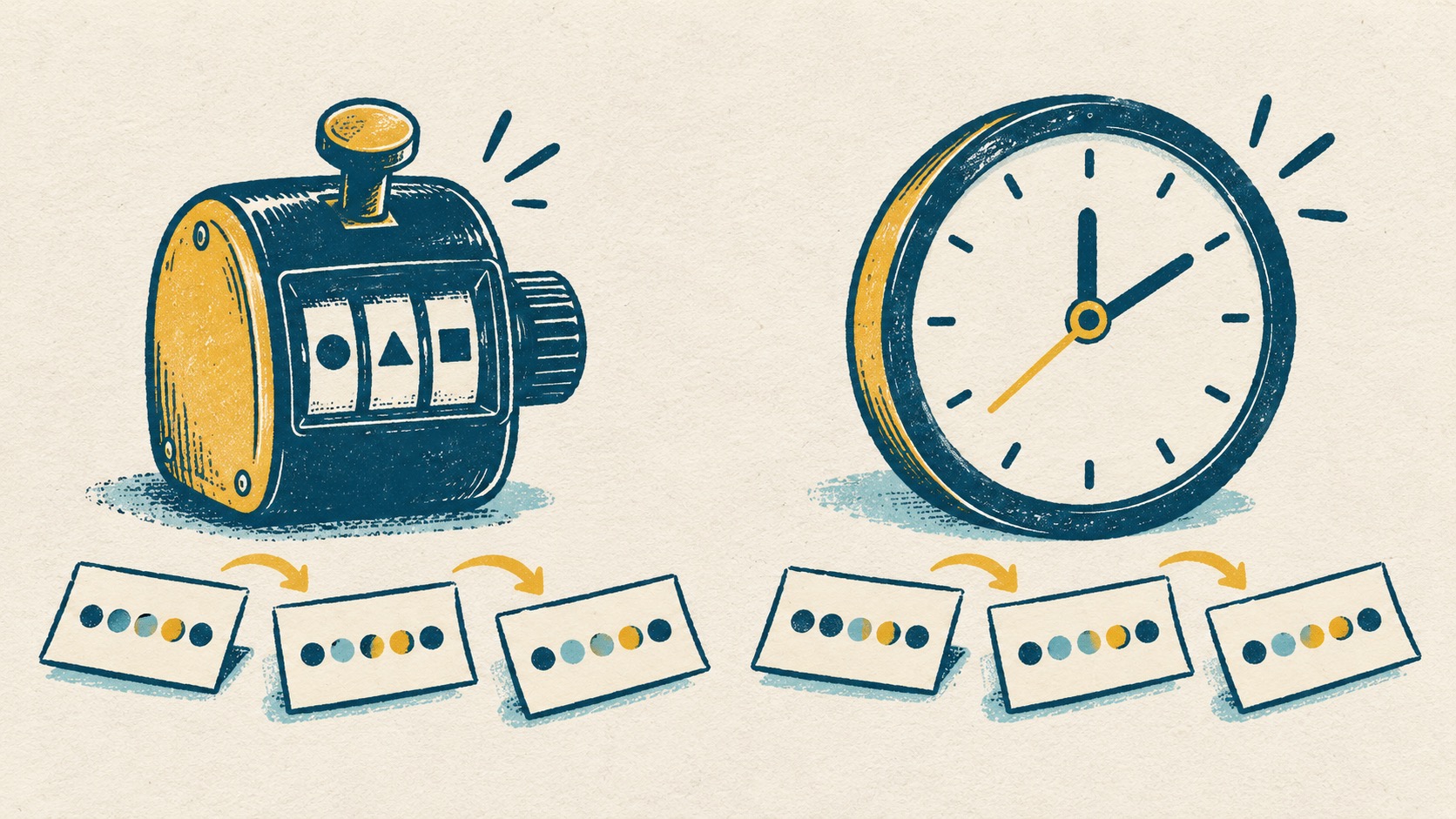
For TOTP, an authenticator uses the saved key together with the current time interval. A countdown can therefore lead to another displayed code without rewriting the setup key. Both sides also need matching parameters such as the time step.
Writing down one code does not preserve the account's setup material. For the time-based calculation, see why authenticator codes change. The distinction here is between what establishes an entry and what you enter during a later sign-in.
Finish setup, then make the entry easy to find
Follow the website's enrollment instructions and enter a current code back on the site to complete its confirmation. Give the entry a recognizable service and account name, such as work email or personal code repository, so similar entries are easier to tell apart.
With Authenticator Cloud, add the entry and finish the website's confirmation, then find that entry when you need a code. To use the same accounts across phone and computer, enable Pro, sign in to the same account and complete cloud sync first. The getting-started guide covers adding entries and using them day to day.
- Use the website's setup QR or manual key when adding an entry.
- Use the entry's current short code when the website asks for a verification code.
- Keep setup QRs and keys as credentials, out of group chats and public images.
References
- RFC 4648: Base32 encoding and public examples
- RFC 6238: TOTP keys, time and parameters
- Google: Key URI format
See the official guides above for detailed setup instructions.

Add and name accounts in Authenticator Cloud, then find the corresponding code on your phone or computer.