Security basics
Why do authenticator codes change every few seconds?
Codes can appear without an internet connection and change when the timer resets. Here is how the setup secret and clock work together.
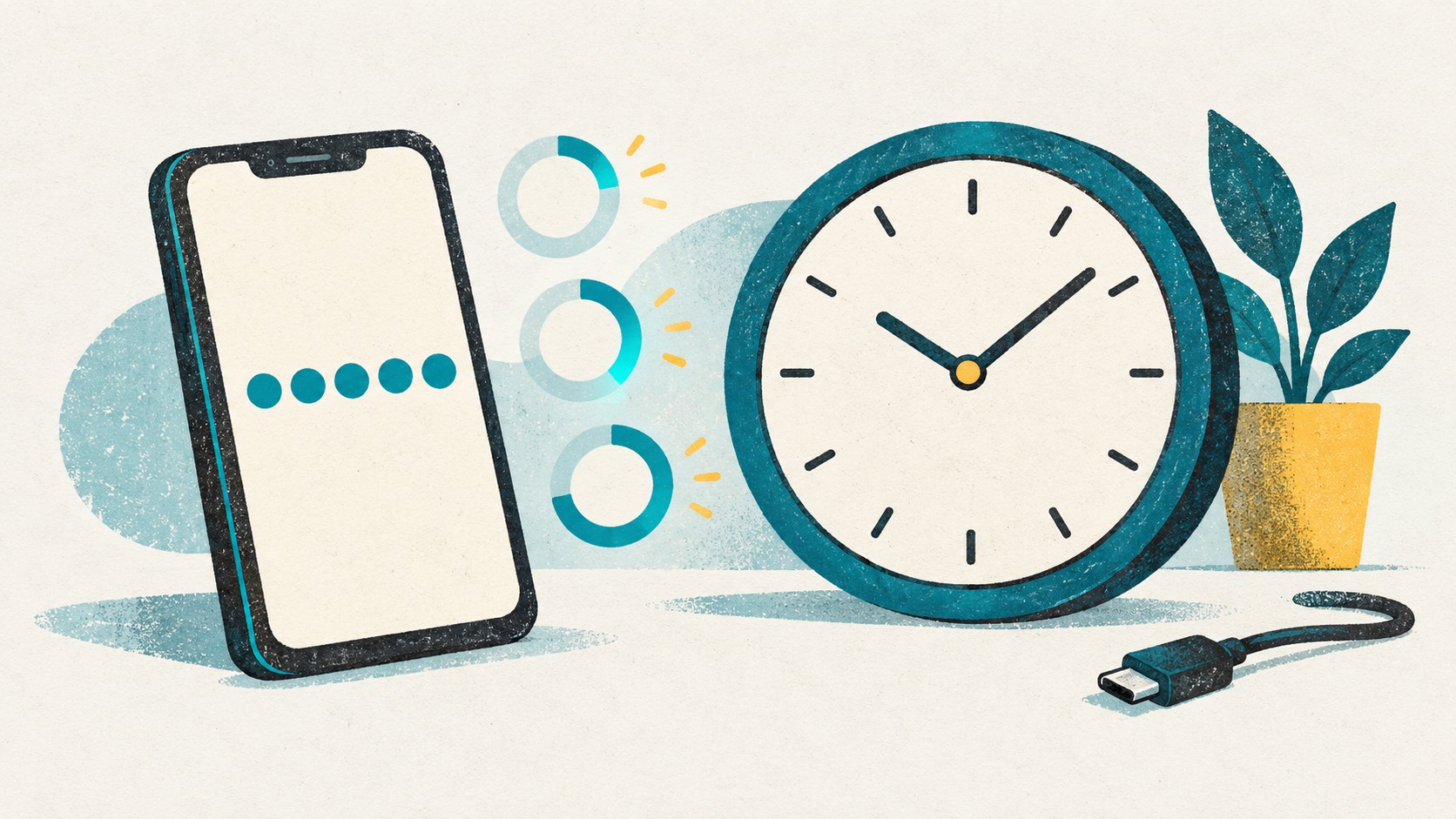
During setup, the website and authenticator share a secret. They use it with the current time to calculate a code. The authenticator can do that offline, and the code changes when the next time interval starts.
In this article
Setup gives the authenticator a shared secret
The setup QR normally carries the information needed to generate future codes. The changing number is an output, not an account backup. Writing down one number will not let you rebuild the entry on another device.
Treat both the QR and a manual setup key as credentials. A screenshot of the setup material can remain useful to someone else long after the currently displayed code expires.
Why the code changes when the timer resets
TOTP derives codes for successive time intervals. RFC 6238 recommends a 30-second default, but an individual service can choose different parameters.
When a code is about to expire, waiting for the next interval makes a test easier to interpret. The service chooses its acceptance window; repeatedly sending an expired number does not resynchronize it.
Why codes still appear without a connection
Generating TOTP uses the saved secret, its parameters, and the device clock. Codes keep changing while your phone is offline. Connect your phone or computer when you are ready to sign into the website.
Cloud sync is a separate step that needs a connection. To use codes on another device, complete a sync and check its account list first.
Three checks for everyday use
In Authenticator Cloud, label entries clearly and watch the countdown. If a code is about to expire, wait for the next one before copying or filling it.
For manual setup, use the type, digits, algorithm, and period supplied by the website. If a code fails, check these three things.
- The selected service and account are correct.
- Automatic time is enabled on the device.
- The website's enrollment confirmation is complete.
References
See the official guides above for detailed setup instructions.

Add a website account to Authenticator Cloud, watch its countdown and use the current code when you sign in.