Product guides
Safari is here: get codes on iPhone, iPad and Mac
Authenticator Cloud's mobile and Mac Safari extensions have passed Apple review. The website now links to the App Store, with browser-by-browser setup and usage help.
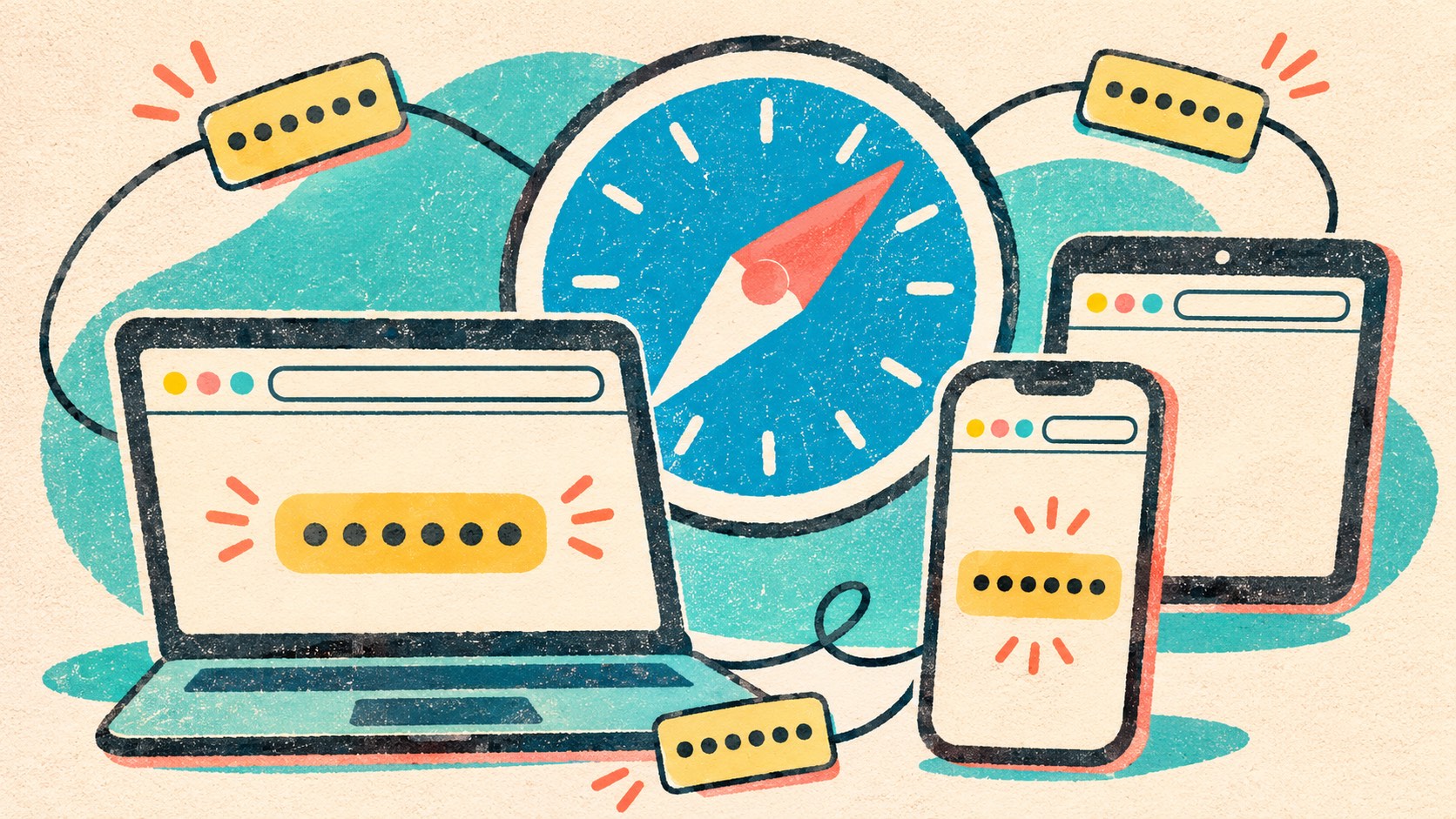
Authenticator Cloud now provides Safari extension downloads for iPhone, iPad and Mac. On mobile, prepare your accounts in the app and enable Safari sharing. On Mac, install the app and enable the extension in Safari settings. Then find the matching code from Safari when a website asks for it.
In this article
A direct App Store link for Safari users
The iPhone, iPad and Mac Safari extensions have passed Apple review. We have replaced the website's coming-soon label with an App Store link. In Safari, the install button leads to the store; you can also select Safari from the browser menu.
When signing into email, cloud services or other websites in Safari, open Authenticator Cloud to find your code. If you have several accounts for one service, search by service or account name and choose the entry for the account you are signing into.
On iPhone and iPad, manage accounts in the app and get codes in Safari
Install or update Authenticator Cloud and add your code accounts in the app. In its Safari extension settings, turn on Share codes with Safari. Then enable the extension in system settings and allow access to the website where you want to use it.
The Safari panel uses entries shared from the app. Add accounts and edit their names in the app; open the panel from Safari's page menu when a website asks for a code. The iPhone / iPad Safari guide includes installation links and the settings route.
On Mac, install the app and enable the extension
Download the Mac version of Authenticator Cloud from the App Store. Open Safari settings from the app, enable Authenticator Cloud under Extensions, and allow access to the websites where you plan to use it. Open the extension from Safari's toolbar to add and manage your Mac code entries.
Clear account labels help when you spend most of your day in a desktop browser. Include the service and email or purpose, so the next sign-in does not involve searching through similar names. Follow the Mac Safari guide for installation and enabling the extension.
Tap to copy on mobile; double-click to copy on desktop
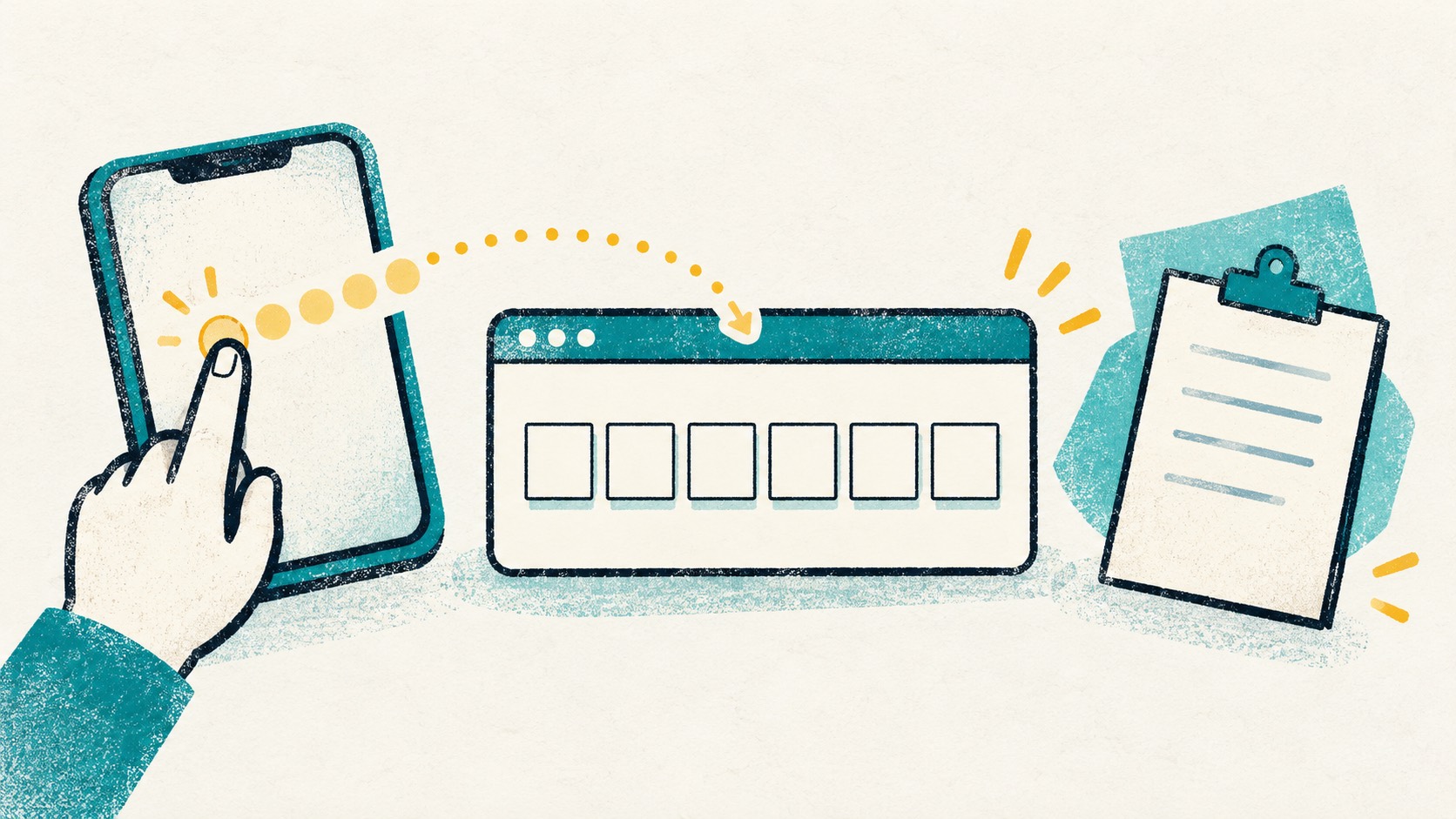
In iPhone / iPad Safari, tap the code digits to copy or the adjacent fill icon to put the code into a supported field on the current page. Return to the website and choose its Continue or Sign in button if needed.
In the desktop extension, a single click attempts to fill the current page; a double-click copies. When it recognizes a matching submit button, the desktop fill flow also attempts to submit the code. This handles the verification-code step, not password entry. Follow any further checks the website presents.
Bring synced accounts along, and find help in one place
Local code management is free. To use the same accounts on your phone, Mac and other computers, use Pro, sign into the same Authenticator Cloud account in the app and extension, and complete a sync first. Entries that finished syncing will then be available on your other devices.
The new help center separates installation, enabling, copying, filling and common problems for Chrome, Edge, Firefox, Mac Safari and iPhone / iPad Safari. Open Help in the website header or footer, then choose the browser you are using.
References
- Authenticator Cloud on the App Store
- Apple: Safari extensions on iPhone
- Apple: Safari extensions on Mac
See the official guides above for detailed setup instructions.

Install Authenticator Cloud and enable its extension on your device. Pro sync brings the same synced accounts to phone and computer.