Product guides
Work and personal browser profiles: which account should you check for a code?
A browser profile, your Authenticator Cloud login and the website account are three different things. Check them in that order when a familiar code list seems to be missing.
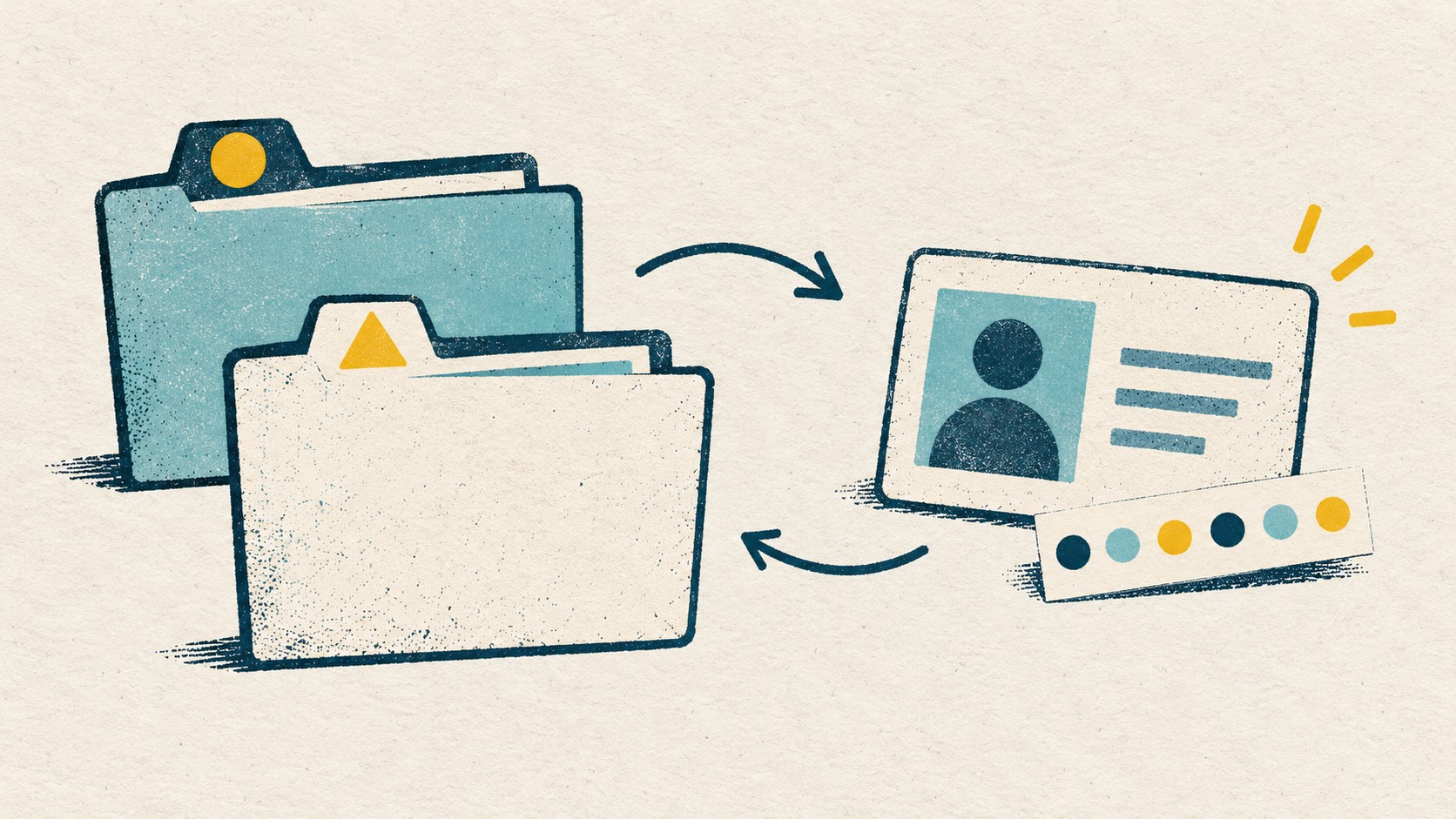
Identify the browser profile first, then check the Authenticator Cloud account used in the extension, and finally select the website account you are signing in to. A profile name is not a product login, and the product login is not the website identity.
In this article
Separate the three names
| Identity | What to check |
|---|---|
| Browser profile | Which work or personal profile is in use |
| Authenticator Cloud account | The product account actually used in the extension |
| Website account | The service and identity requesting a code |
A browser profile named Work, an email shown in the extension and the account on a website can all appear during one sign-in. Each answers a different question; a familiar name alone does not tell you that everything matches.
If the list looks different, identify the profile first
Chrome and Firefox support multiple profiles. Google's documentation describes profile information such as bookmarks, history, passwords and settings; Mozilla describes a profile as a separately stored set of user information. Start by identifying which one you are using, rather than changing authenticator entries.
Recognizable names or markers can help distinguish work and personal profiles. They identify a browser context, not the account signed in to an extension. Use the official instructions for your particular browser and version to locate its profile controls.
Next, check the account in the extension
Once you have identified the browser profile, check the Authenticator Cloud product account. The browser's own sign-in or synchronization is separate from Authenticator Cloud cloud sync.
For entries shared between phone and computer, follow the existing sync guide: confirm Pro, the same Authenticator Cloud account and completed synchronization. Checking these details does not require signing out or deleting a browser profile.
Then select the website identity
After checking the product account, distinguish the website's work and personal identities too. Two entries for the same service can have the same icon and still belong to different website accounts.
Compare the username or email used for this sign-in with the matching entry. If labels are hard to distinguish, the account naming guide covers that separately. You do not need to reorganize the whole list while checking browser profiles.
Check one layer at a time
Browser profile, product account, website account: this short sequence gives you something concrete to compare instead of repeatedly switching windows. Keep existing entries while checking; reinstalling the extension is not the first step.
Once you have found the matching entry, retrieve its complete current code. Continue with the Authenticator Cloud browser code guide for everyday copying and filling.
- Identify the current browser profile.
- Check the Authenticator Cloud account in the extension.
- Match the entry to the website identity you are signing in to.
References
- Google Chrome: Manage multiple profiles
- Mozilla: Firefox Profile Manager
- Authenticator Cloud: App and extension sync
See the official guides above for detailed setup instructions.

Use the service and account identity in Authenticator Cloud to find, copy or fill the current code.