Security basics
Why do I need an authenticator code after a CAPTCHA?
You finish a human-verification challenge, then the page asks for a rotating code. These prompts check different things. Read the next prompt before choosing a code.
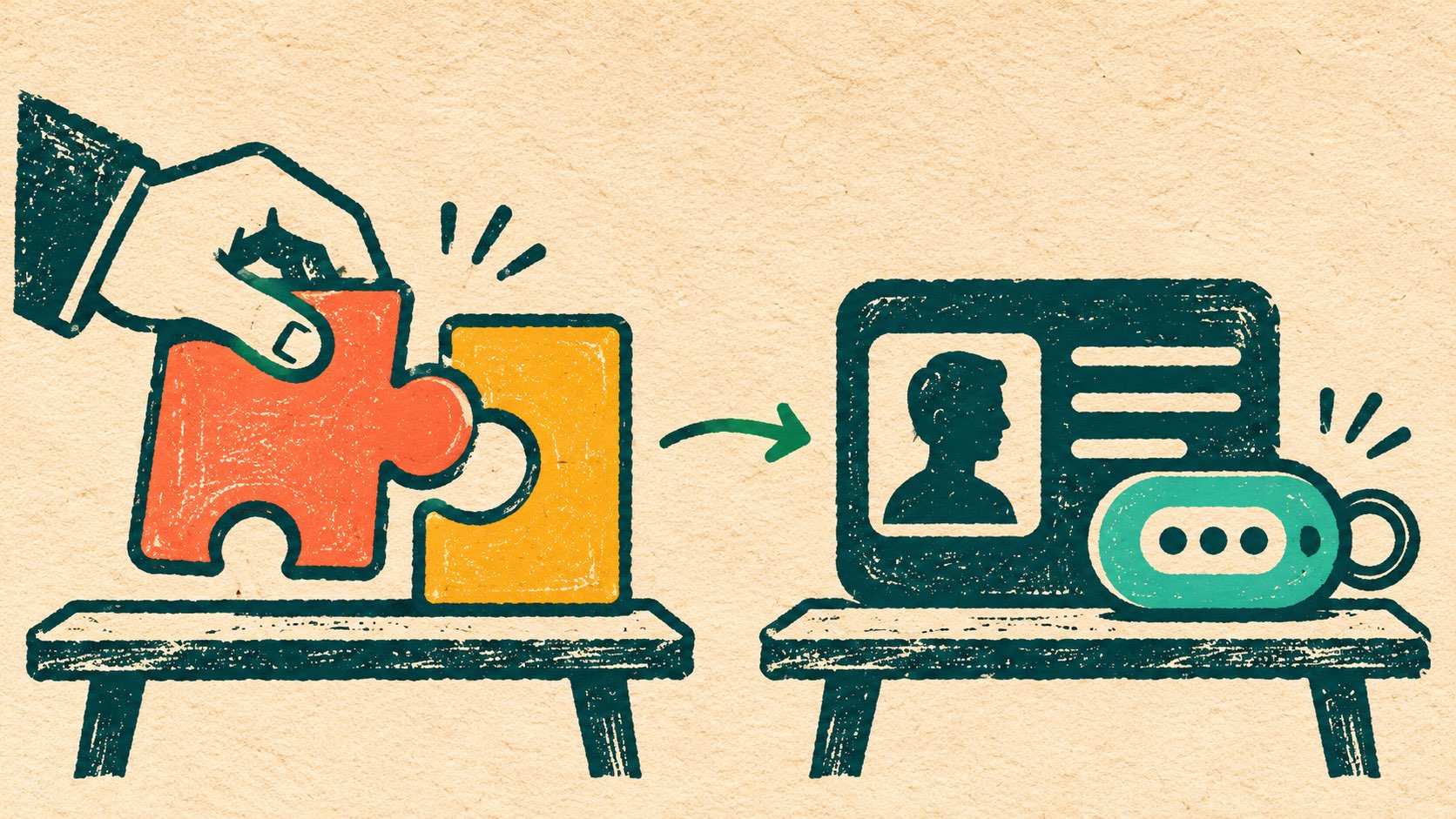
A CAPTCHA-style check helps a site assess automation or abuse. An authenticator code is a way to check credentials associated with an account. Completing the first does not complete the second, so both can appear during one visit.
In this article
Two verification prompts can ask different questions
You select the images and another box asks for digits. It can feel like starting over. Read the new prompt: if it asks for a code from your authenticator app, the next step concerns your account credentials, not another answer to the image challenge.
A site can arrange several checks during a visit. Completing one means that step accepted its result; a password, authenticator code or another confirmation may still follow.
A human-verification check concerns the interaction
CAPTCHA-style checks are used to assess automation or abuse. That is different from checking the credentials for a particular account. A completed checkbox or challenge does not, by itself, establish that you are signed in.
Not every such check is an image puzzle. Google documents several reCAPTCHA forms; v3 returns an interaction-based score without presenting a challenge for the user to solve. Read the actual prompt rather than classifying the step only by its appearance.
An authenticator code belongs to an enrolled account
| What the prompt requests | Where to look |
|---|---|
| Complete the current human-verification challenge | The challenge's own instructions |
| Enter a code from your authenticator app | The entry enrolled for that account |
| Enter a code sent by SMS or email | The message destination specified by the prompt |
Account authentication checks control of credentials associated with an account. A password plus an authenticator code is a common multi-factor combination. When the page requests that code, find the entry enrolled for the account you are signing in to.
A CAPTCHA result and a rotating account code are not interchangeable. Nor will a code from a different account complete this account's verification.
Read the instructions next to the input
First confirm that you initiated the visit. Check which type of code the prompt requests and which account is selected. Go to your authenticator entry when it specifically asks for an authenticator code.
After entering digits, inspect the site's response. It may still need a submission, or it may reject the code. See the invalid-code checklist when needed. Finishing an earlier challenge is not evidence that the later sign-in succeeded.
When it is time for a code, find the matching entry
In Authenticator Cloud, find an enrolled entry by service and account, then read its current code. Give work and personal entries distinct names so you do not have to guess between similar labels.
Reading a code, entering it and having the site accept it are separate actions. Follow the current prompt rather than adding the account again whenever you see the word verification. For enrollment, see the Authenticator Cloud getting-started guide.
References
- Google: reCAPTCHA overview
- Google: interaction-based scoring in reCAPTCHA v3
- NIST SP 800-63B-4: authentication and authenticators
See the official guides above for detailed setup instructions.
Organize enrolled accounts in Authenticator Cloud and read their current codes on your phone or in the browser.