Troubleshooting
Why is my Firefox extension missing in a private window?
Check whether the extension can run in private windows before troubleshooting site access. These are separate settings.
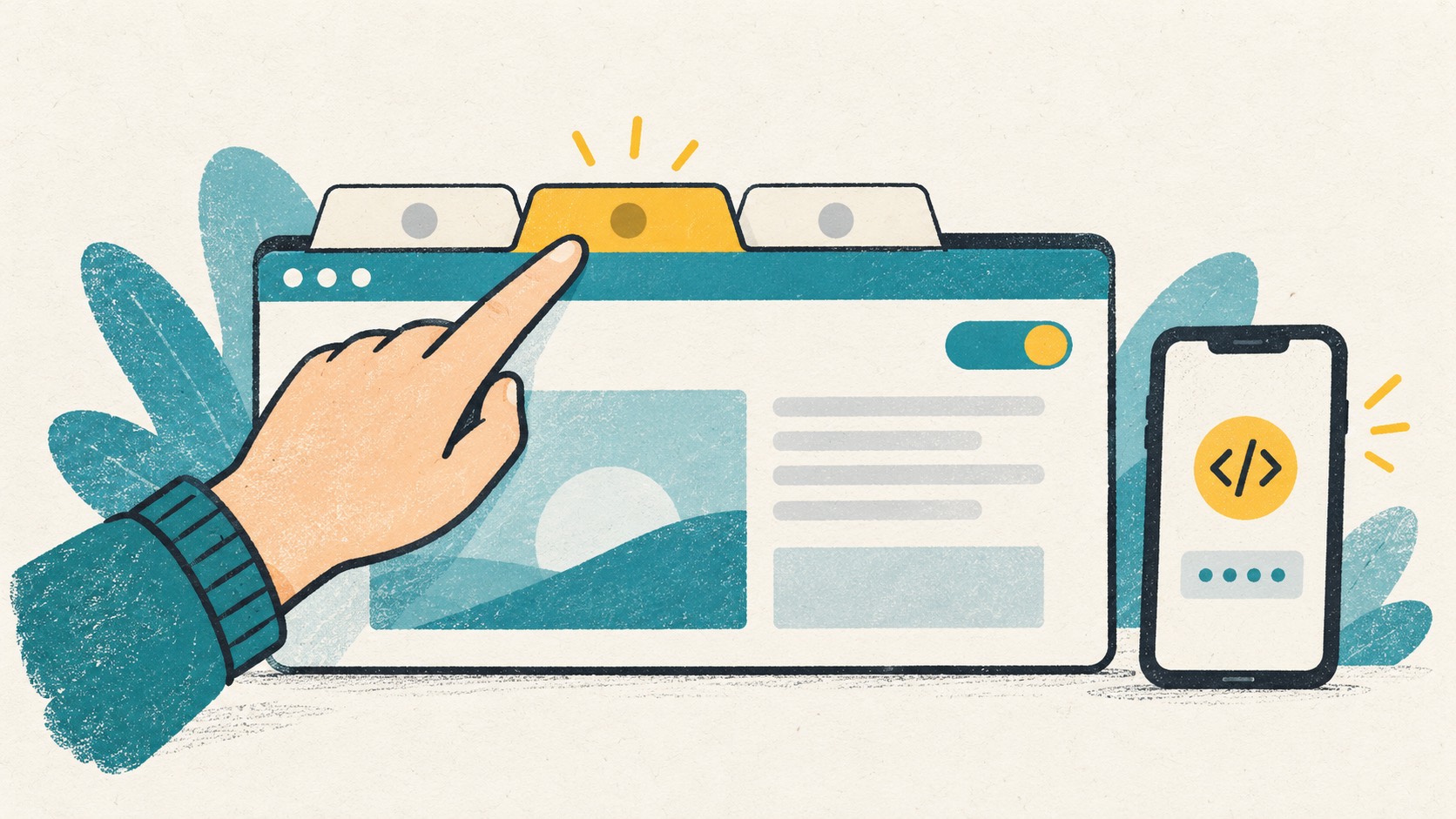
Firefox manages permission to run an extension in private windows separately. An extension enabled in a normal window is not automatically allowed in a private one. In the same browser profile, open its details and look for Run in Private Windows, then decide whether you want to allow it.
In this article
Did you change windows or browser profiles?
Before reinstalling anything, check whether the normal and private windows belong to the same Firefox profile. If work and personal browsing use different profiles, return to the one where you installed the extension.
This guide concerns two kinds of window within one profile. If the extension lists differ even between normal windows, start with organizing accounts across browser profiles instead.
Enabled in a normal window is not the same as allowed in a private one
Mozilla explains that extensions are not enabled for private browsing by default. They need separate permission. That can explain an extension working in a normal window but missing from a private one.
You may have seen the private-window option during installation. If you left it unchecked, inspect the extension's details later. A missing entry alone does not tell you whether an account signed out or a code entry was removed.
Look in the extension's details
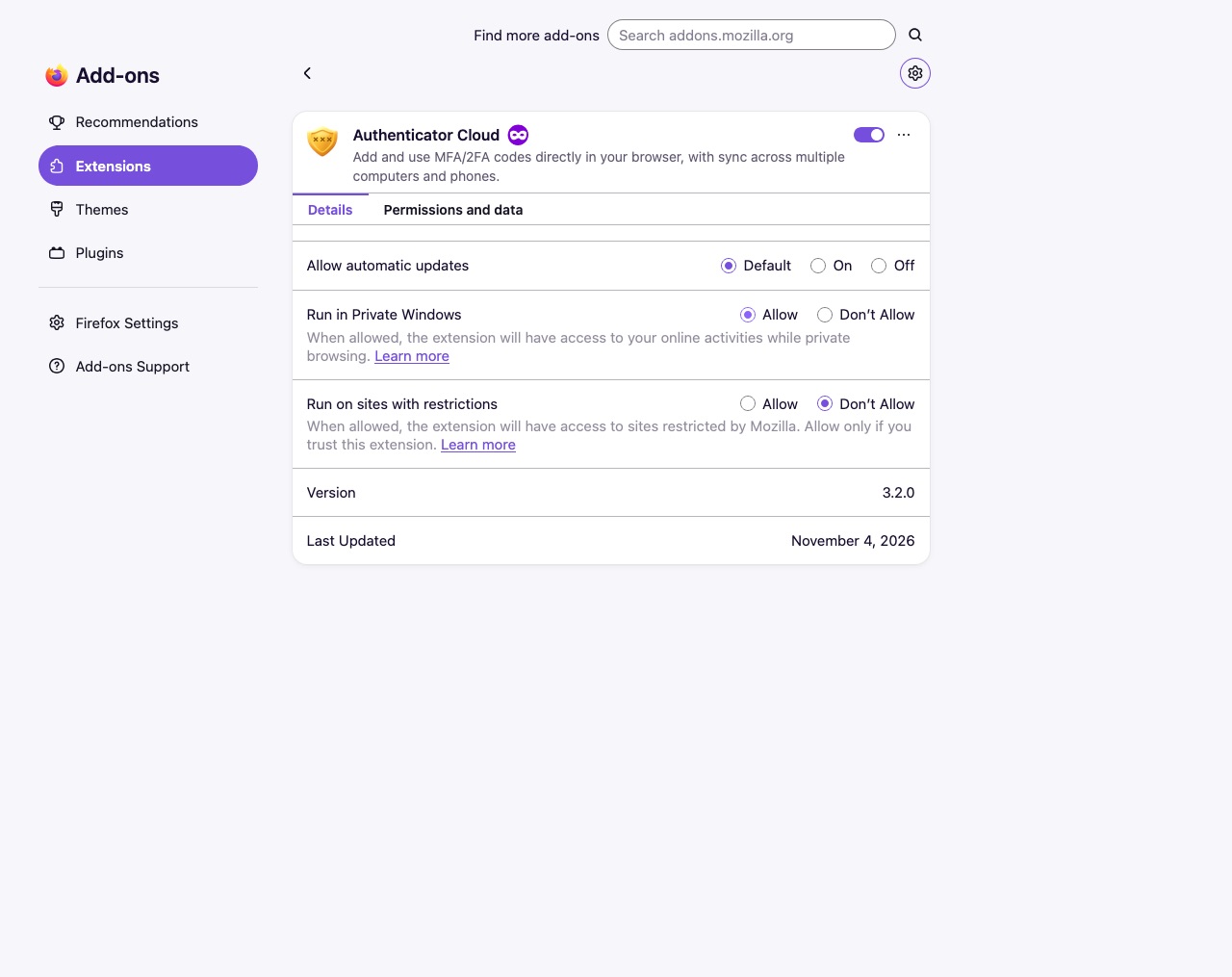
Mozilla's documented route is to open Firefox's extension manager from the menu, select the extension, and look for Run in Private Windows. Where the setting is available, it offers Allow and Don't Allow.
Decide whether you want the extension in private windows before changing that option. Mozilla notes that not every extension can be allowed there. If the setting is absent, check the current extension's documentation rather than repeatedly removing and reinstalling it.
We checked Firefox 159.0.1 on macOS with Authenticator Cloud 3.2.0 from Mozilla Add-ons in an isolated profile. The extension became available in the private window after allowing it there. See the extension-details screenshot from this test, with Allow selected. Labels may differ by language and system.
Check the panel before testing a page action
Separate your observations: can you open the extension at all, and can it perform the action on your page? Recording which step fails is more useful than changing several permissions together.
Private-window permission and website access are separate settings. If the panel opens but a page action does not work, check access for that site next. See extension website permissions; this check does not call for granting access to every site.
Find the account you are signing into
In Authenticator Cloud, look up the matching entry by service, email or purpose. Distinct work and personal labels make the right account easier to find. Continue with the guide to copying and filling codes in the browser for everyday use.
For phone-to-desktop use, Pro sync requires the same Authenticator Cloud account in the app and extension, with synchronization completed. Check window availability and account synchronization separately.
References
See the official guides above for detailed setup instructions.

Look up entries by service or account in Authenticator Cloud, then explore copying and filling codes.