
Set up a GitHub authenticator and save recovery codes
Enable two-factor authentication, scan the setup QR and store recovery codes. Get the sign-in basics in place for your developer account.
 Authenticator Cloud
Authenticator Cloud Journal
Two-factor authentication, digital security and practical guides.
Enable two-factor authentication, scan the setup QR and store recovery codes. Get the sign-in basics in place for your developer account.

Before wiping the disk, check browser profiles, backup files and sync. A few minutes now can make the next sign-in much easier.
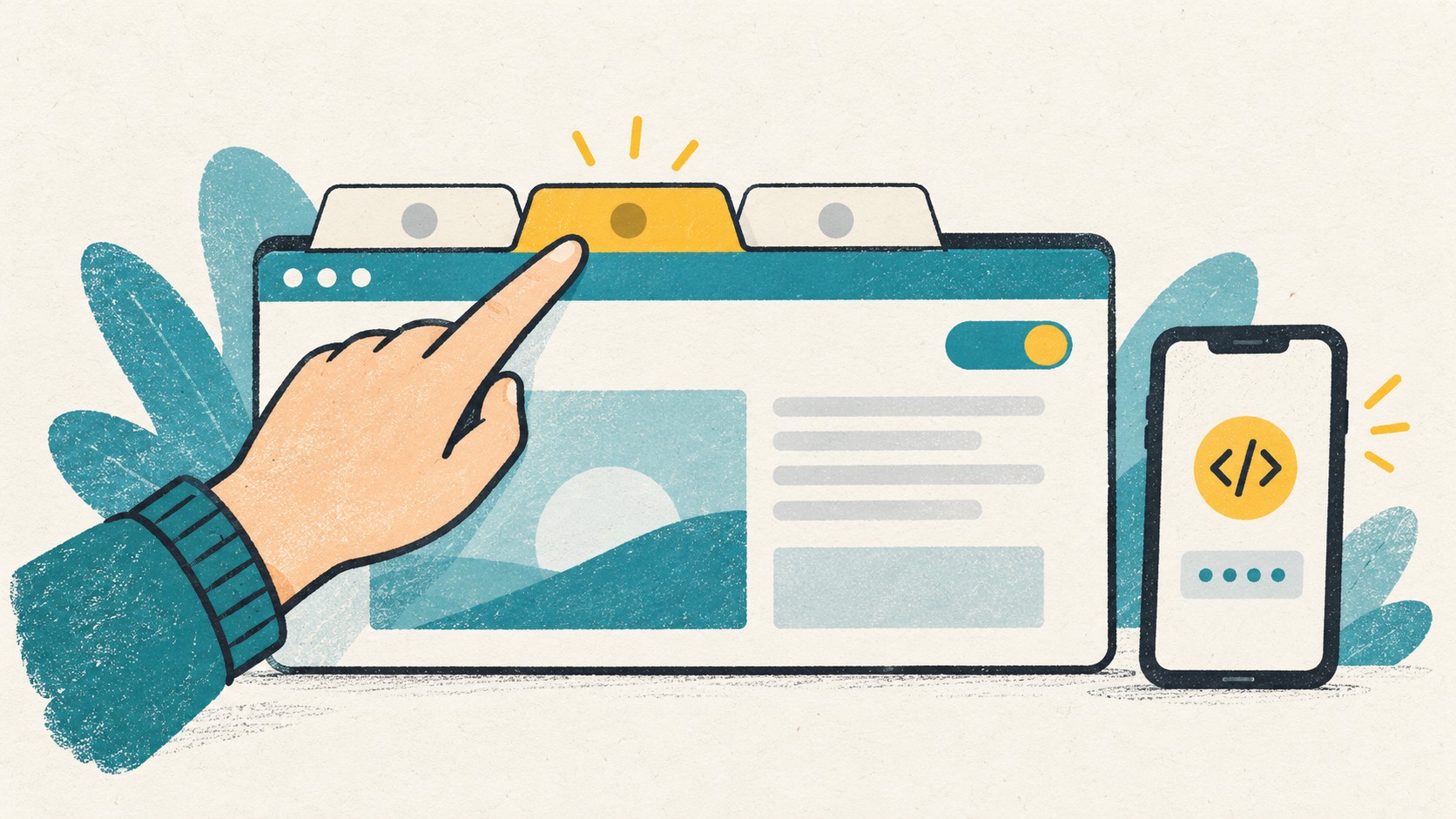
Page scanning and code filling need permission to work with a website. Here is how to choose the sites an extension can access.
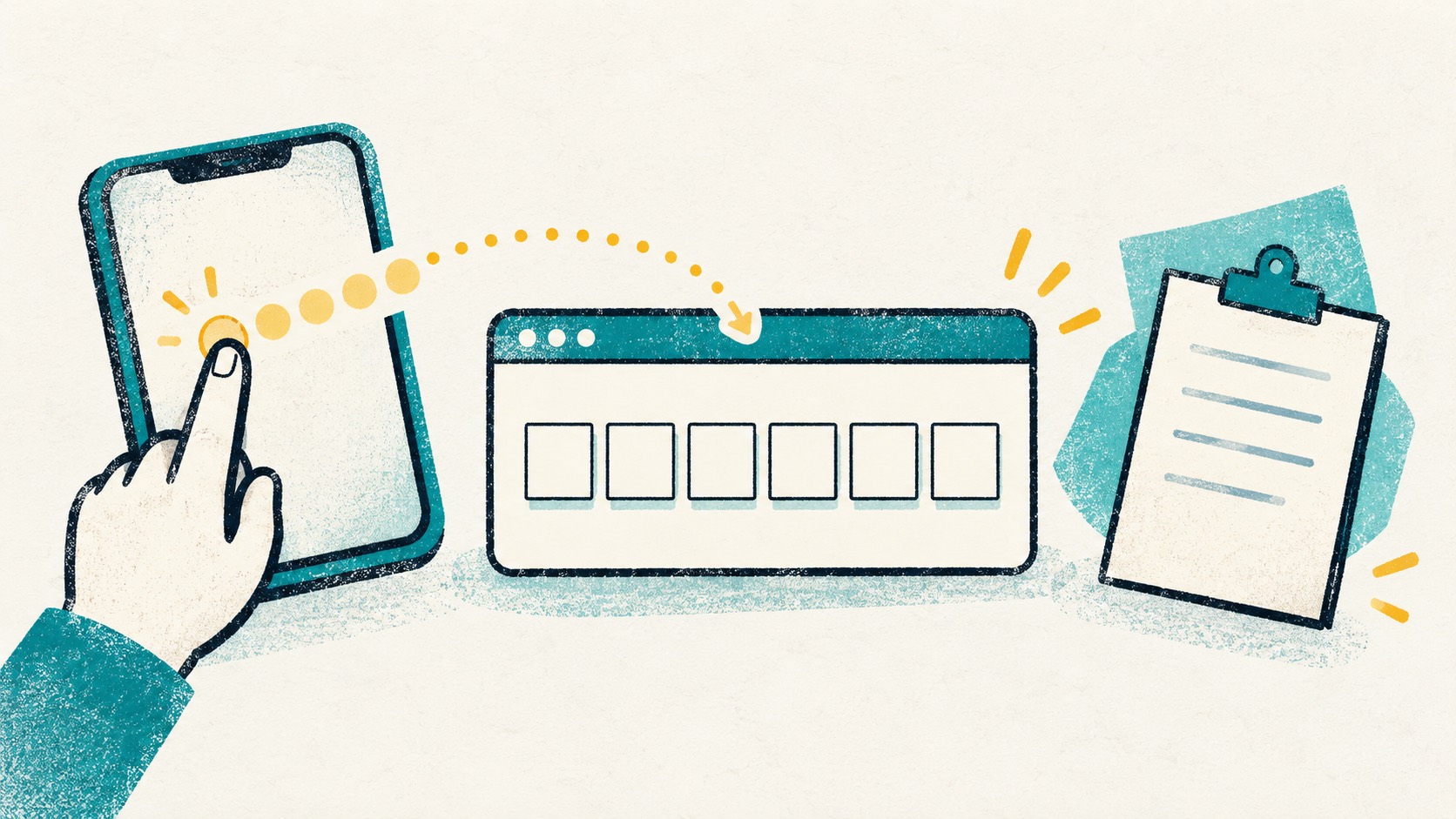
Find your code right in the browser. Copy it into the sign-in form or fill it directly on supported pages.
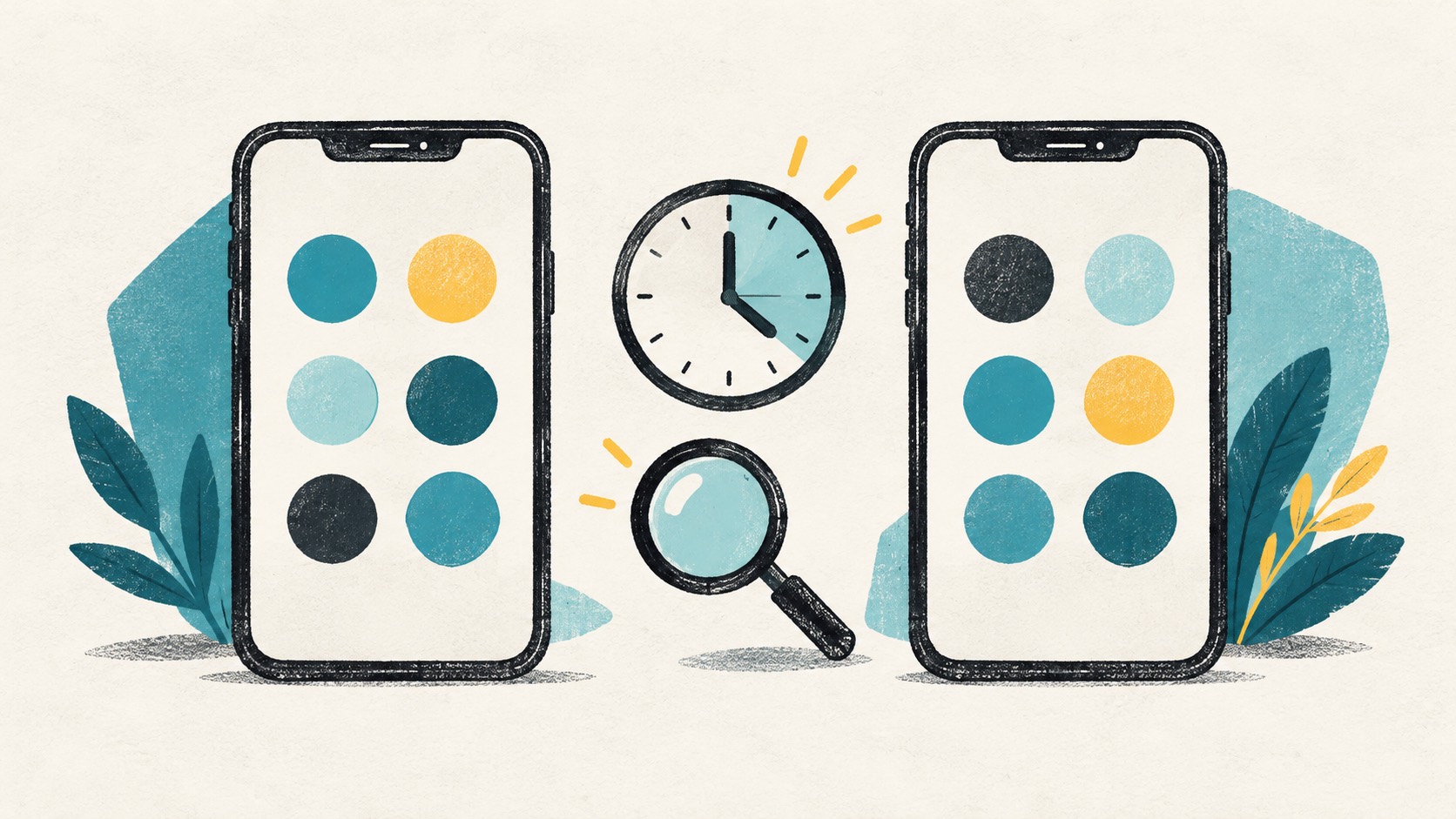
One device may have refreshed first, or the clocks and setup records may differ. Here is where to check.
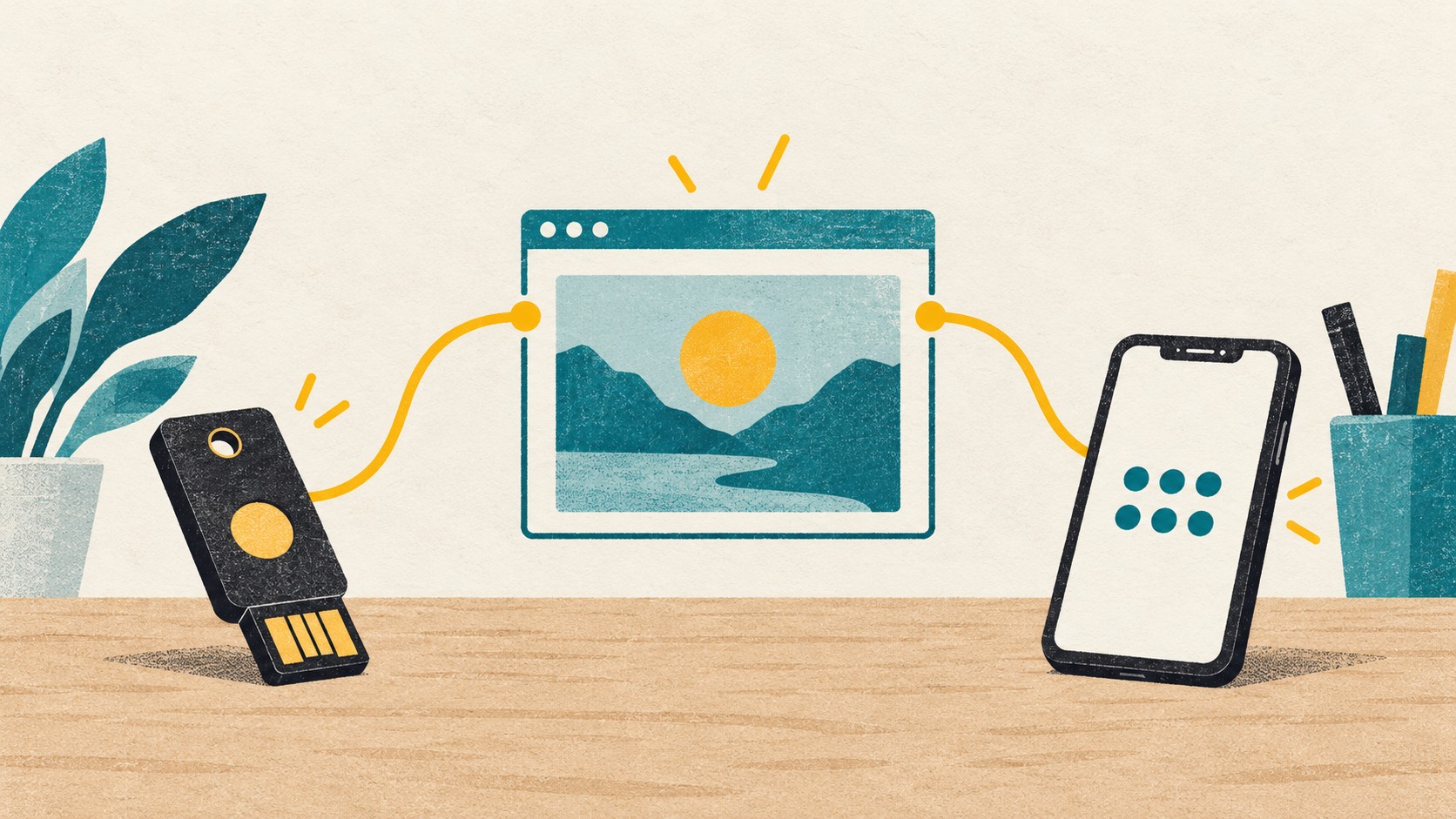
Some websites accept a device unlock; others still ask for a code. You can use both without rushing to remove either one.
Start in your profile's authentication settings, enroll an authenticator and save recovery codes for your account.
Find the file, check the passphrase and try importing a test entry. A small rehearsal makes the process familiar before you need it.
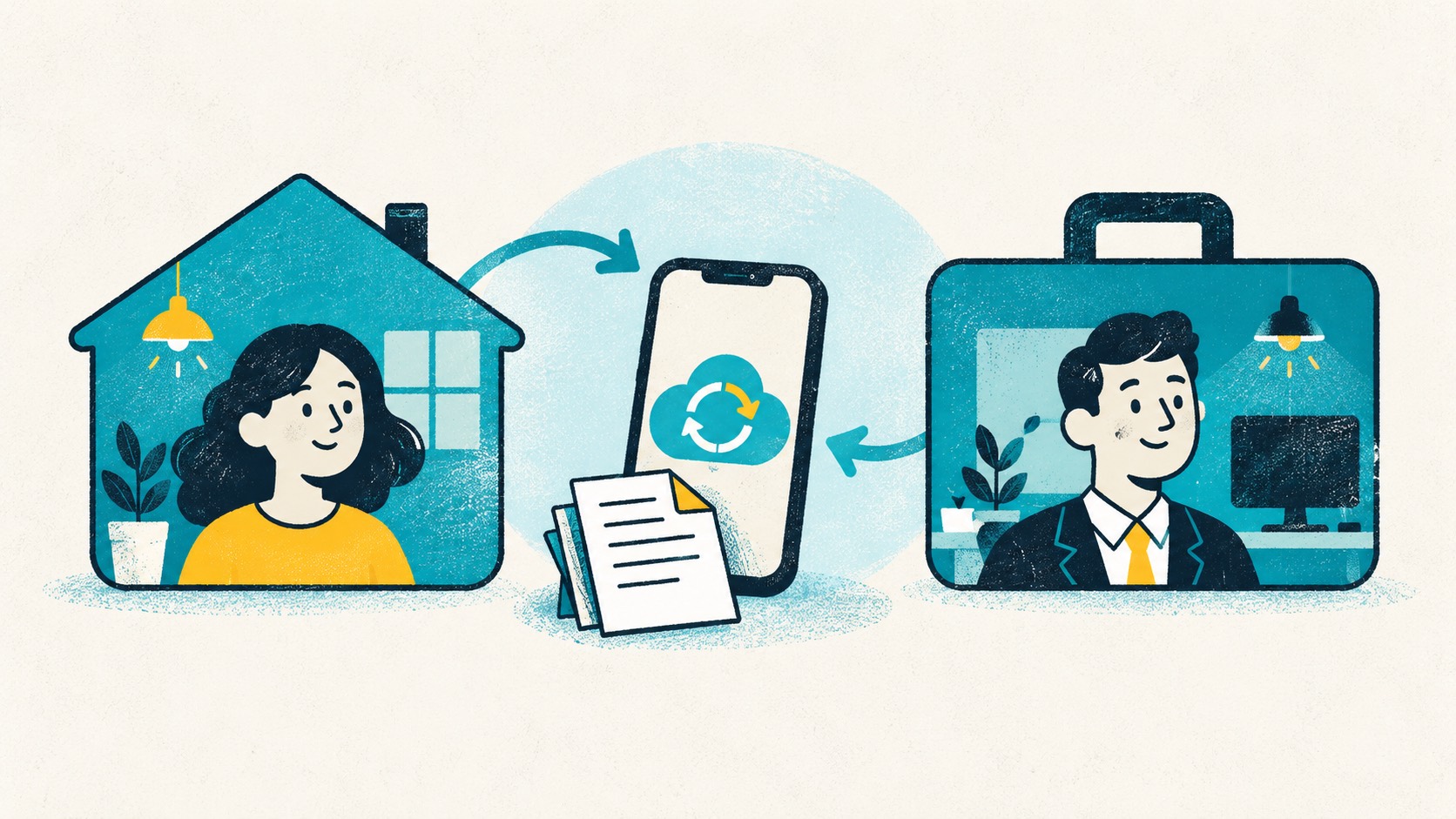
Personal accounts, work accounts and passwordless sign-ins can need different steps. Start with the account type and the prompts on your new phone.

Local storage, cloud sync and backup files serve different purposes. Here is how to use each for daily access and device changes.
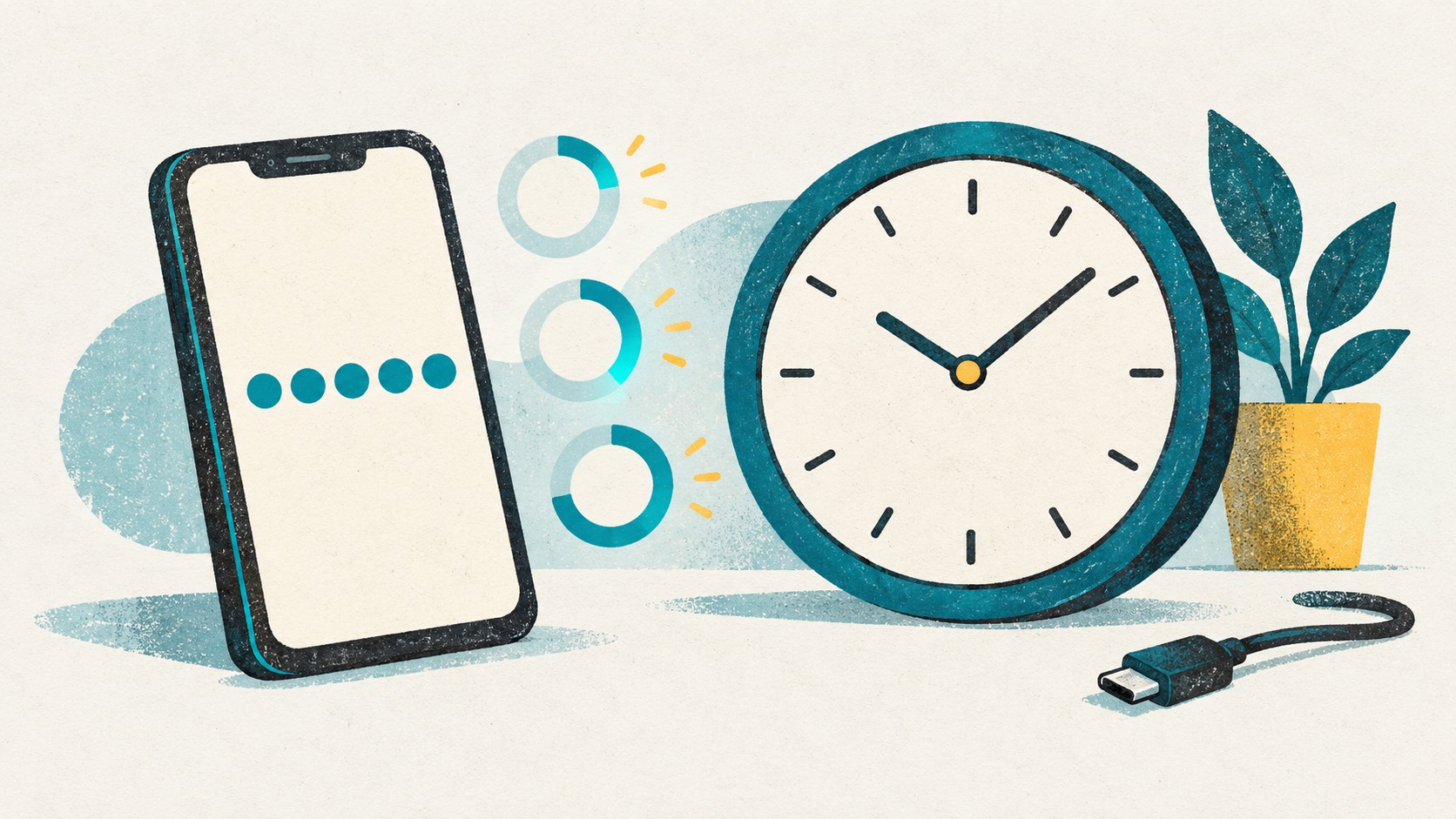
Codes can appear without an internet connection and change when the timer resets. Here is how the setup secret and clock work together.
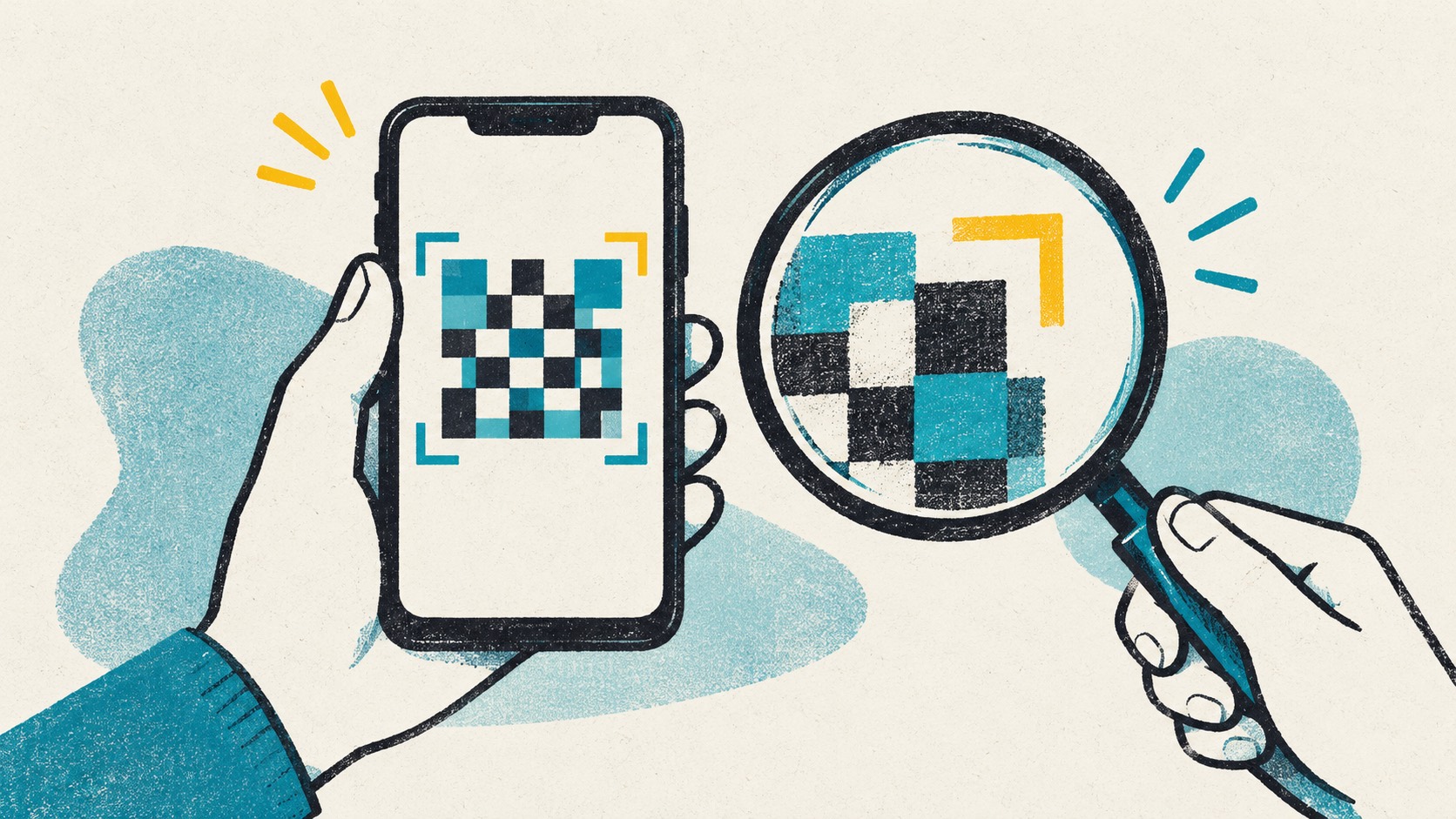
Check the QR type, image size and site permissions, or use the setup key instead. A few checks can save repeated scans.
 ChromeChrome Web Store
Install
ChromeChrome Web Store
Install
 EdgeMicrosoft Edge Add-ons
Install
EdgeMicrosoft Edge Add-ons
Install
 FirefoxFirefox Add-ons
Install
FirefoxFirefox Add-ons
Install
 SafariiPhone / iPad / Mac
Coming soon
SafariiPhone / iPad / Mac
Coming soon